How to Create an "As Seen On" Media Mentions Section
An "As Seen On" section adds credibility to your website by showcasing media mentions, partnerships, or features in well-known publications. While QuickServers’ website builder does not have a dedicated media mentions section, you can create one using image and text elements. Follow this guide to add a professional media mentions section to your website.
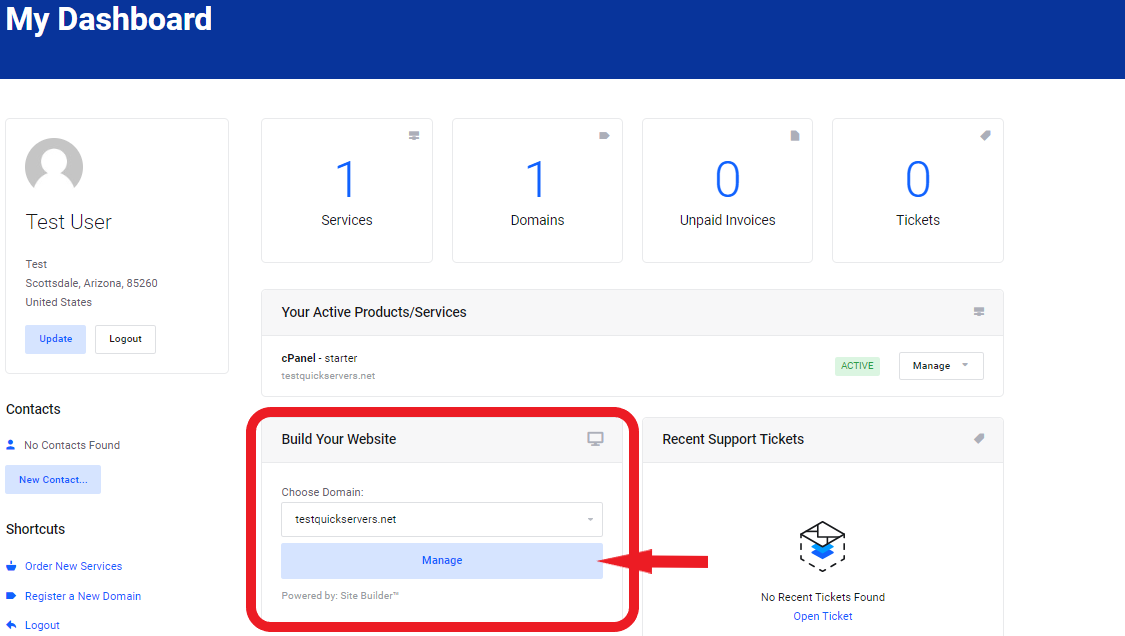
Step 1: Access the Website Editor
- Log in to your QuickServers website editor.
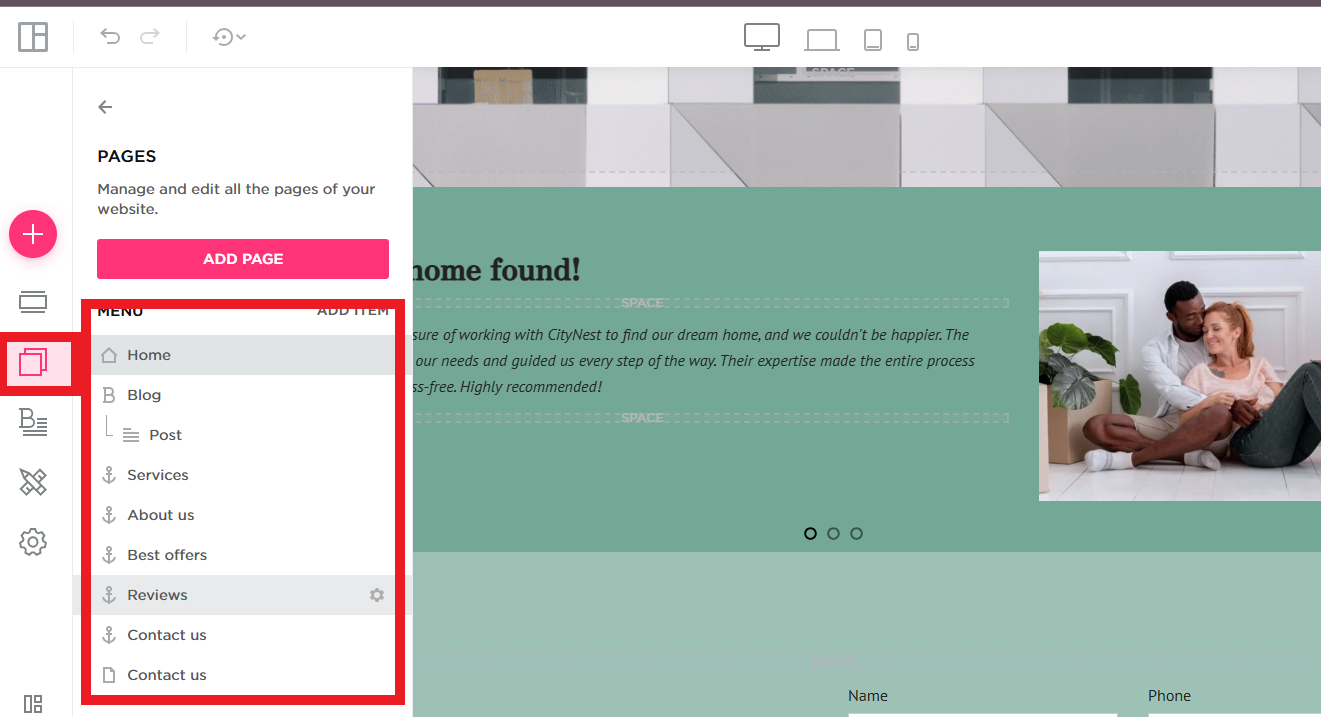
- Navigate to the page where you want to display your media mentions (commonly the homepage or about page).
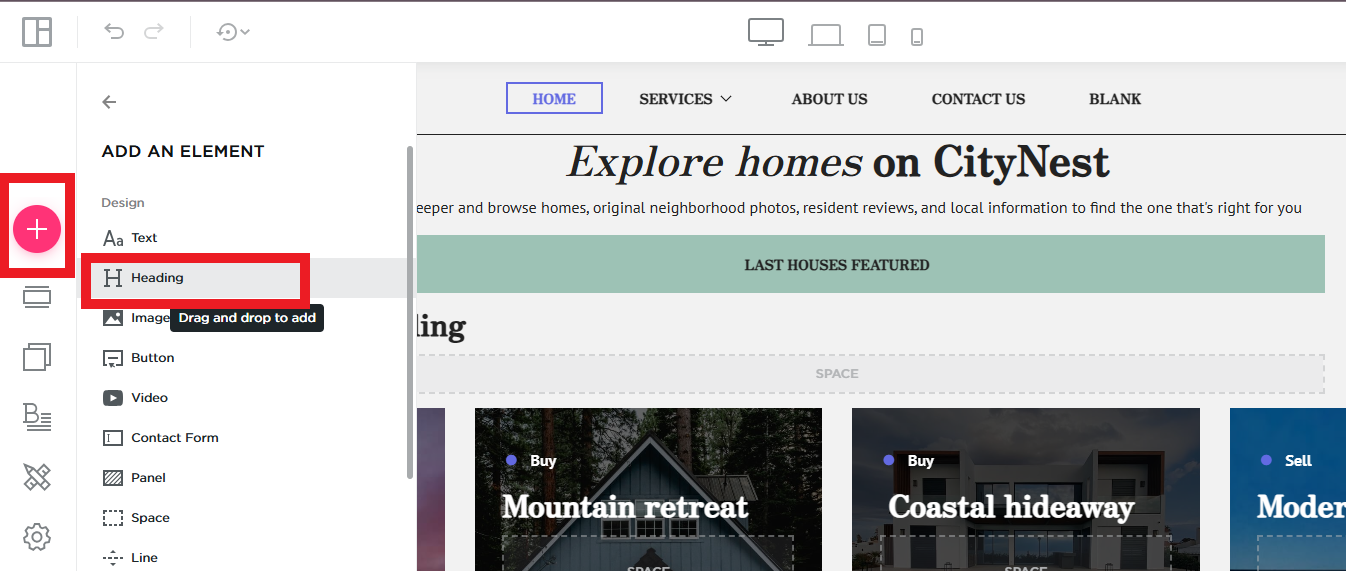
Step 2: Add a Heading for the Media Mentions Section
- Select the text element and place it at the top of the section.
- Enter a heading such as "As Seen On" or "Featured In".
- Customize the font size, weight, and color to match your website’s design.
Step 3: Upload Media Logos
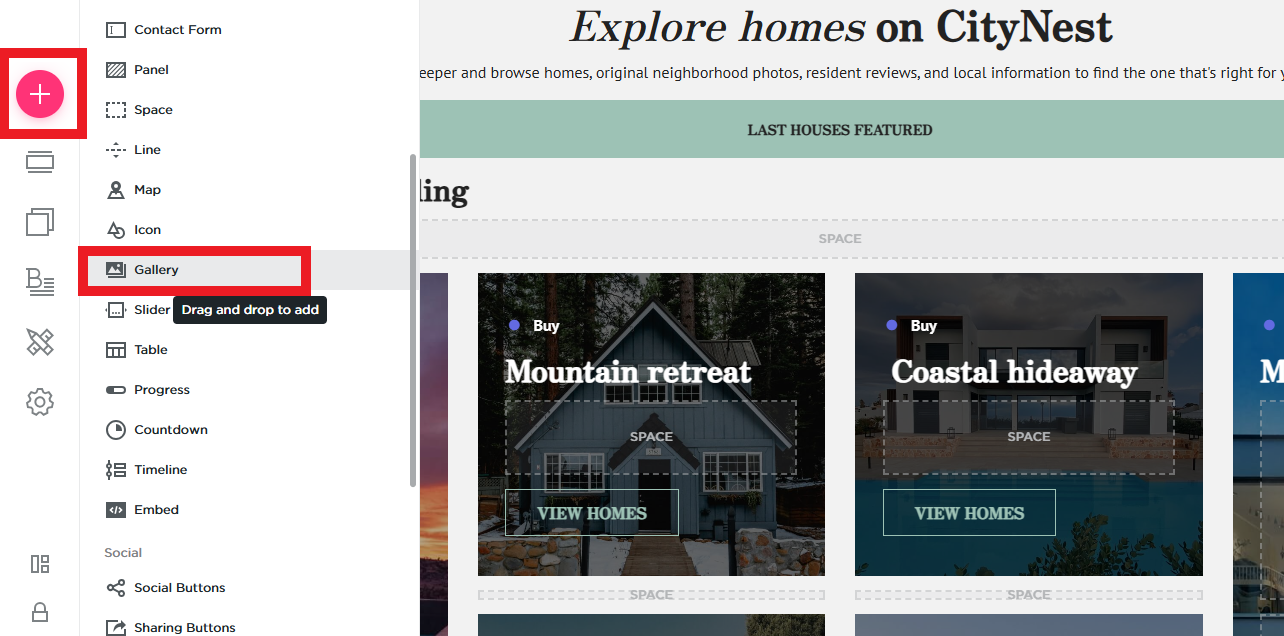
- Locate the logos of media outlets, websites, or organizations that have mentioned your business.
- Ensure the logos are high quality and properly formatted (transparent PNG files work best).
- Select the image element and upload each logo individually or as a group.
Step 4: Arrange the Logos in a Grid or Row
- Drag and position the logos in a single row or grid layout for a clean appearance.
- Resize the logos to ensure a uniform look.
- Align them evenly to maintain consistency.
Step 5: Link Logos to the Original Media Mentions (Optional)
- Click on each logo and add a hyperlink to the original article, press release, or feature.
- If a media mention is offline, link to a dedicated blog post or PDF that provides more details.
Step 6: Customize the Design for a Professional Look
- Adjust the background color of the section to contrast with the logos.
- Add spacing between logos for better readability.
- Enable hover effects to make the section interactive if your website builder supports it.
Step 7: Save and Publish Your Changes
- Review the media mentions section on both desktop and mobile devices.
- Make any necessary adjustments to improve alignment and visibility.
- Save your changes and publish your website.
By following these steps, you can create a professional "As Seen On" media mentions section on your QuickServers website, enhancing trust and credibility for your brand.