How to Park a Domain with QuickServers
Parking a domain means pointing it to a simple holding page instead of a full website. This is useful when you have a domain you want to reserve for future use, protect your brand, or keep as a backup, but you are not ready to build a site yet. With QuickServers, you can park domains directly from your customer portal and still keep full control of DNS, email, and future website setup.
This step-by-step guide explains what domain parking is, when to use it, and how to park a domain using your QuickServers account.
1. What does it mean to park a domain?
When you park a domain, you are:
-
Keeping the domain registered and under your control
-
Pointing it to a basic “parked” or “coming soon” page, or leaving it inactive
-
Not yet using it for a full website
A parked domain can:
-
Show a simple landing or “under construction” page
-
Redirect visitors to another domain you already use
-
Simply stay reserved for future use
Parking is common when you:
-
Secure extra domains for brand protection
-
Reserve a good name before building the site
-
Own multiple domains but only use one as your main website
2. What you need before parking a domain
Before you park your domain with QuickServers, make sure you have:
-
A domain registered and managed in your QuickServers customer portal
-
Access to your QuickServers account login
-
The nameserver or DNS details you plan to use (if you are parking with a specific page or redirect)
Once you have these ready, you can park the domain in just a few clicks.
3. Log in to the QuickServers customer portal
To start:
-
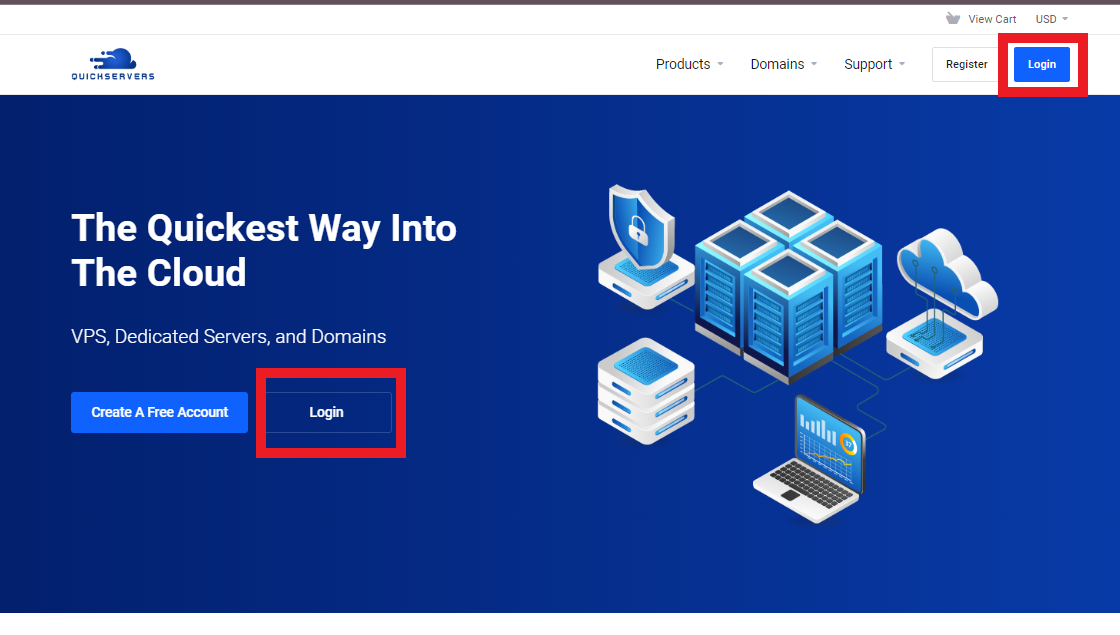
Go to the QuickServers website.
-
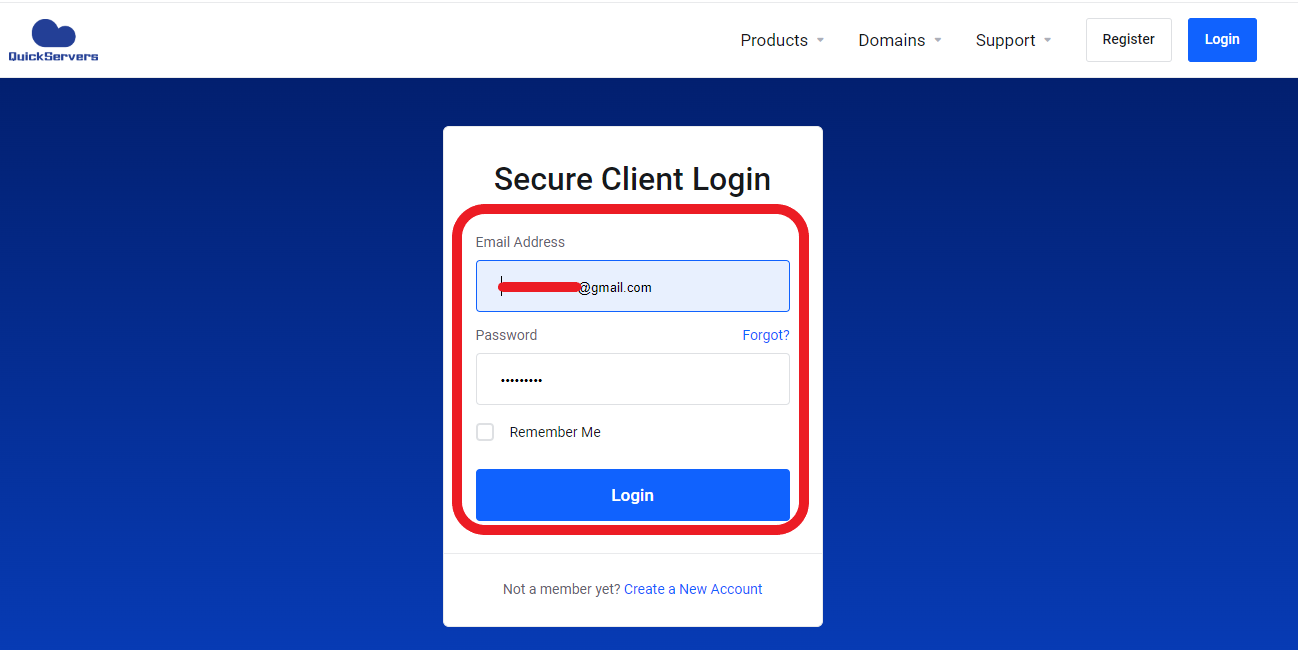
Log in using your customer portal credentials.
-
After logging in, you will see sections for domains, services, billing, and support.
All domain and parking options are managed through the Domains section.
4. Open the “My Domains” section
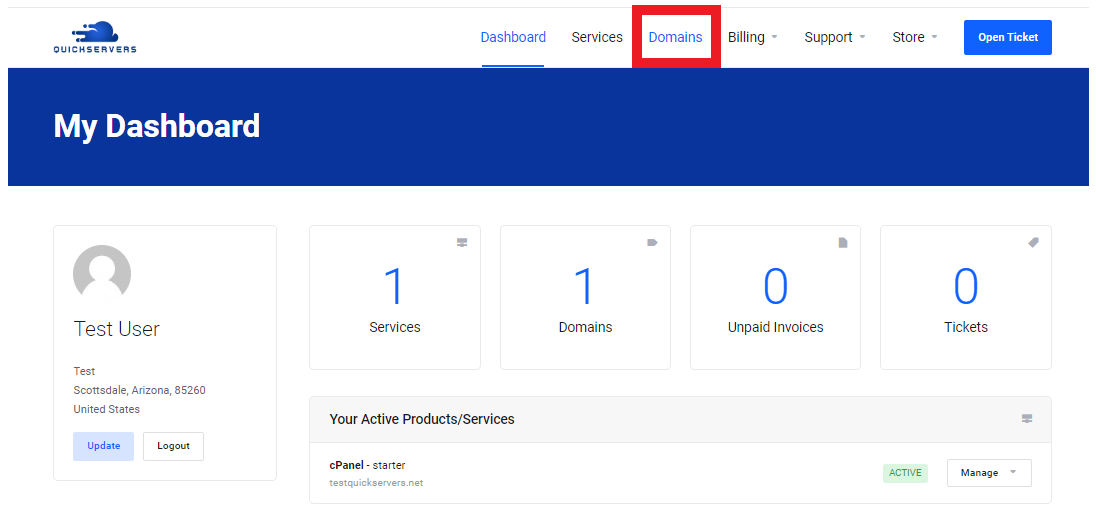
From the main dashboard:
-
Click on Domains.
These are the domains you can manage, including parking, DNS, and forwarding.
5. Choose the domain you want to park
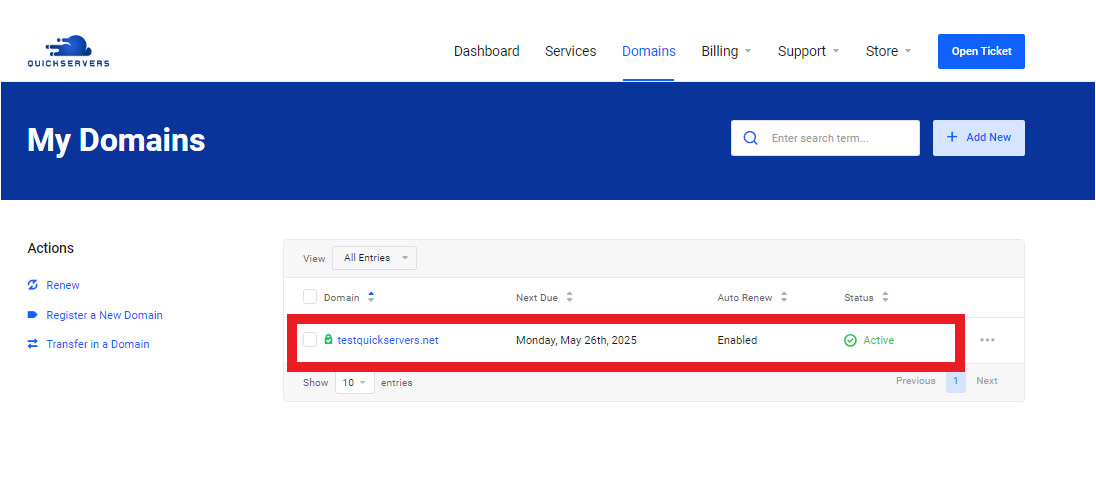
From the list in My Domains:
-
Find the domain you want to park.
-
Click on the domain name to open its management page.
This will take you to a screen where you can configure DNS, nameservers, forwarding, and other settings.
6. Decide how you want to park your domain
There are a few common ways to park a domain with QuickServers:
-
Show a basic parked or placeholder page
-
Redirect the domain to another active website
-
Point the domain to a minimal “under construction” site on your hosting
Think about what you want visitors to see when they type your parked domain:
-
If you just want to hold the name, a simple parked page is enough.
-
If you want all traffic to go to an existing website, use domain forwarding or a redirect.
-
If you want a custom message, you can point the domain to a small page on your hosting plan.
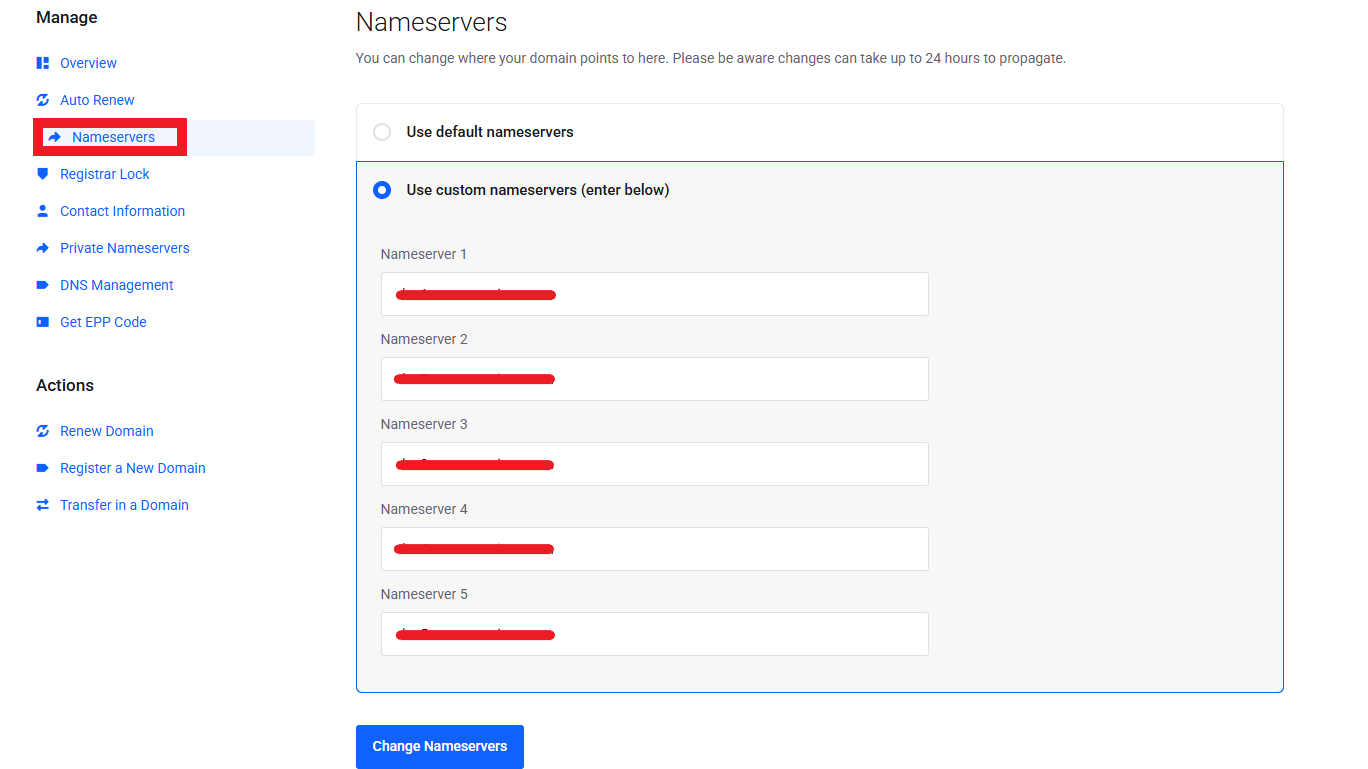
7. Option 1: Use nameservers to park the domain
If your hosting or QuickServers setup provides default nameservers for parked domains, you can use them:
-
On the domain management page, look for Nameservers.
-
Choose the option to use custom nameservers or the default QuickServers nameservers, depending on how your account is configured.
-
Enter the nameservers provided for your parking or hosting plan (for example,
ns1.quickservers.net,ns2.quickservers.net, or similar). -
Save your changes.
This tells the internet that QuickServers will control DNS for that domain and serve the appropriate parked or default page.
8. Option 2: Use DNS records to park or redirect the domain
If you prefer to control domain parking using DNS instead of changing nameservers:
-
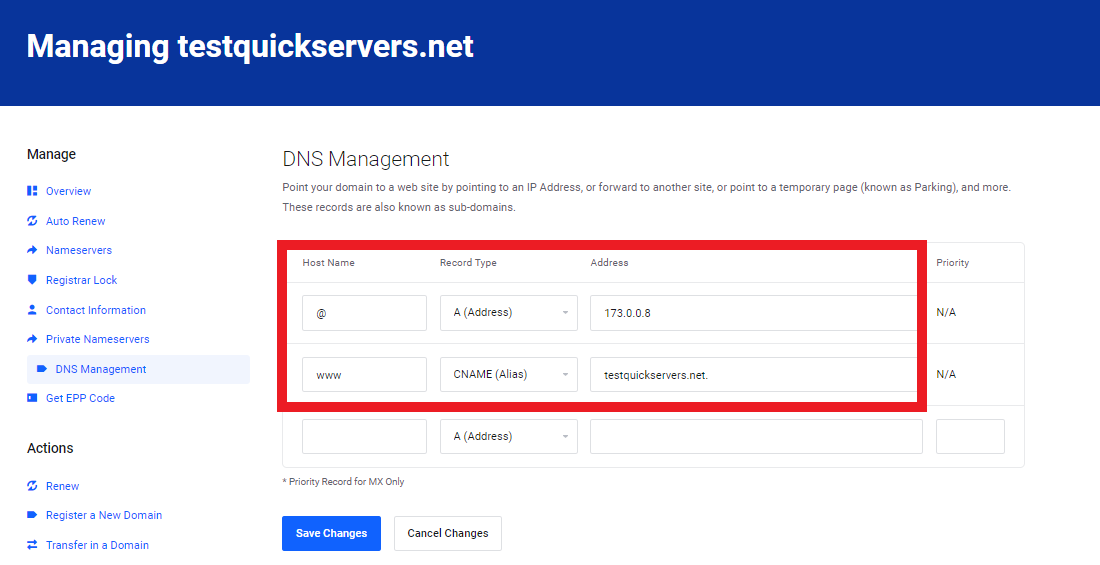
On the domain management page, click DNS Management.
-
Ensure DNS Management is enabled for the domain.
-
You can now choose one of these approaches:
Point the domain to a parked page using an A record
-
Add or edit an A record with:
-
Host:
@ -
Value: the IP address of your parking page or basic site
-
Save the record
-
9. Keep email and other services in mind
When you park a domain, you may still want to:
-
Use the domain for email (for example,
info@yourparkeddomain.com) -
Keep certain DNS records active (such as MX, SPF, or TXT)
If you are using DNS Management:
-
Do not remove or change MX records if you are using email on that domain.
-
Only update A, CNAME, or forwarding settings needed for parking.
-
Review existing records and avoid deleting anything you still need.
This way, the domain can be parked for web traffic while email and other services continue to work.
10. Wait for DNS changes to propagate
Changes to nameservers or DNS records do not take effect instantly. They must propagate across global DNS systems.
Typical propagation times:
-
Minor DNS updates: 5–30 minutes
-
Larger changes (like nameserver updates): 1–4 hours
-
Full global propagation: up to 24 hours
During this time, some visitors may still see the old website or an error while the new settings are spreading.
11. Check that your domain is parked correctly
After giving DNS some time to update:
-
Type your domain into a browser and see what loads.
-
Confirm that you see the parked page, redirect, or placeholder site you set up.
-
If you set up forwarding, check that the redirect goes to the correct target site.
-
Use online DNS or domain checking tools to verify that your DNS records and nameservers are correct.
If you still see the old site after many hours, try clearing your browser cache or testing from a different network.
12. Manage parked domains from your QuickServers portal
Once your domain is parked, you can manage it entirely from your QuickServers customer portal. From there you can:
-
Unpark the domain later and point it to a new website
-
Update nameservers or DNS if your hosting changes
-
Turn on domain privacy protection (if available)
-
Enable auto-renew to make sure you do not lose the domain
-
Register additional related domains for brand protection
Keeping everything in one dashboard makes it easy to control parked and active domains together.
The Bottom Line
Parking a domain with QuickServers is a simple way to reserve your name, protect your brand, and prepare for future projects without building a full website right away. By using your customer portal to update nameservers, DNS records, or domain forwarding, you can quickly control what visitors see when they type your domain name.
Whether you are saving names for future brands, redirecting extra domains to your main site, or building an online presence step by step, QuickServers gives you the tools to manage domain parking safely and efficiently from a single, easy-to-use portal.
