Resolving “Domain Not Found” Errors on QuickServers
A “Domain Not Found” error usually appears when your domain is not resolving correctly on the internet. This can happen for several reasons, including DNS issues, expired domains, incorrect nameservers, or propagation delays. The good news is that most of these problems can be fixed quickly through your QuickServers customer portal.
This guide explains the most common causes of the error and gives you step-by-step instructions on how to resolve it.
1. Confirm That Your Domain Registration Is Active
Before troubleshooting DNS or nameservers, make sure your domain is still registered and has not expired.
To check this:
-
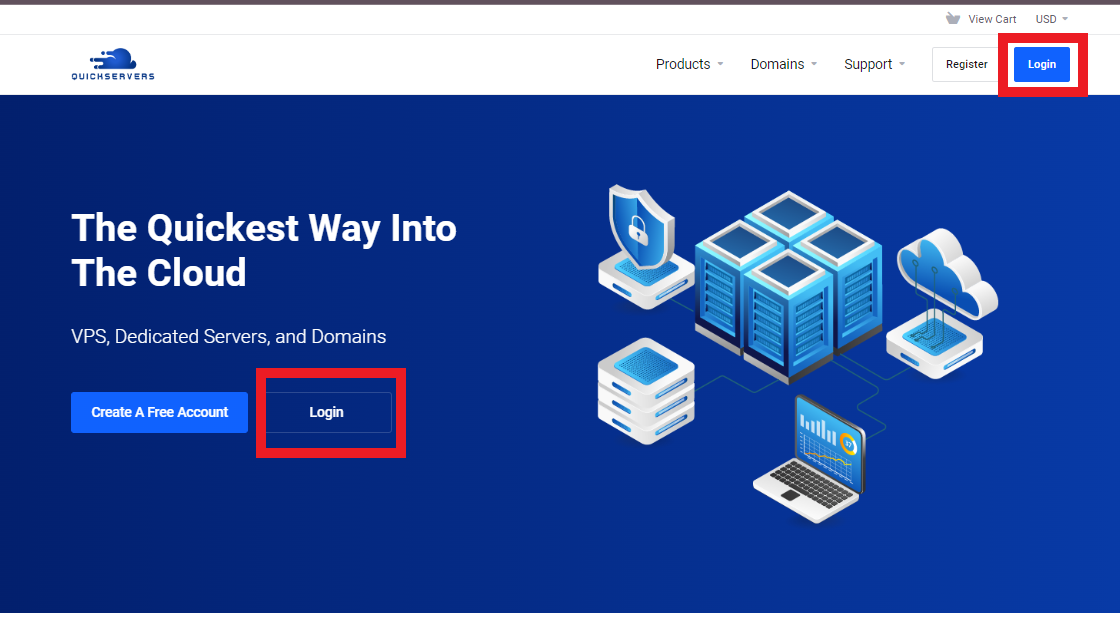
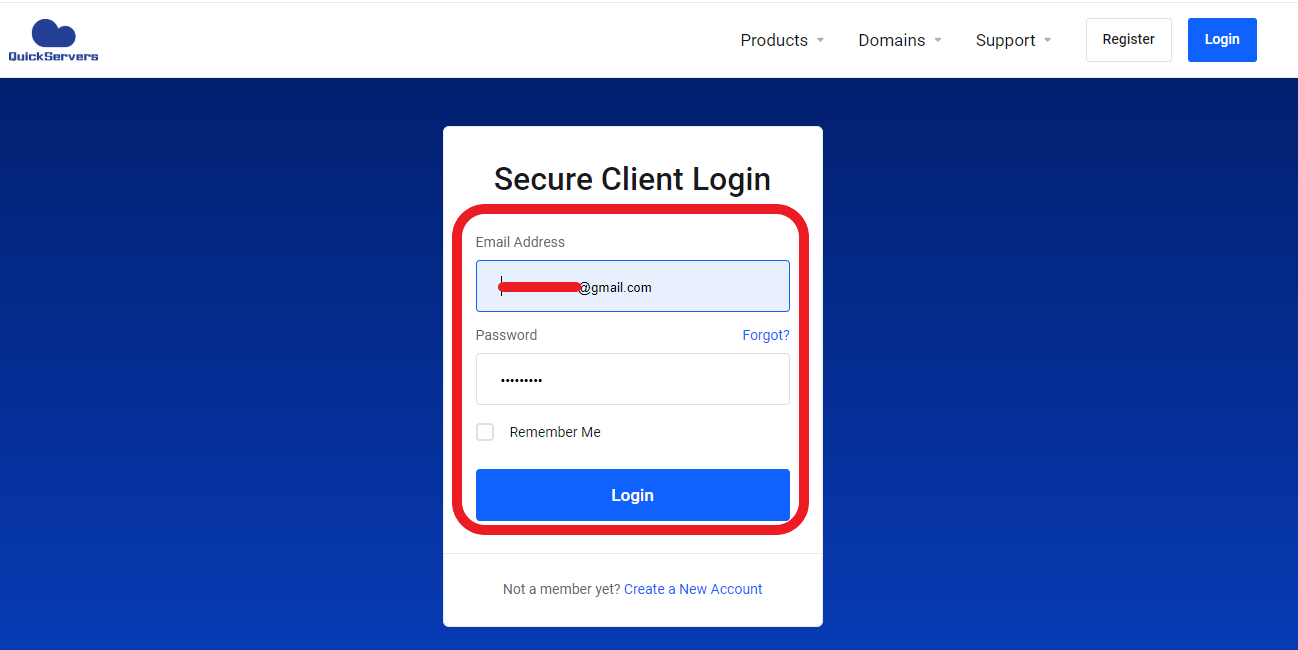
Log in to your QuickServers customer portal.
-
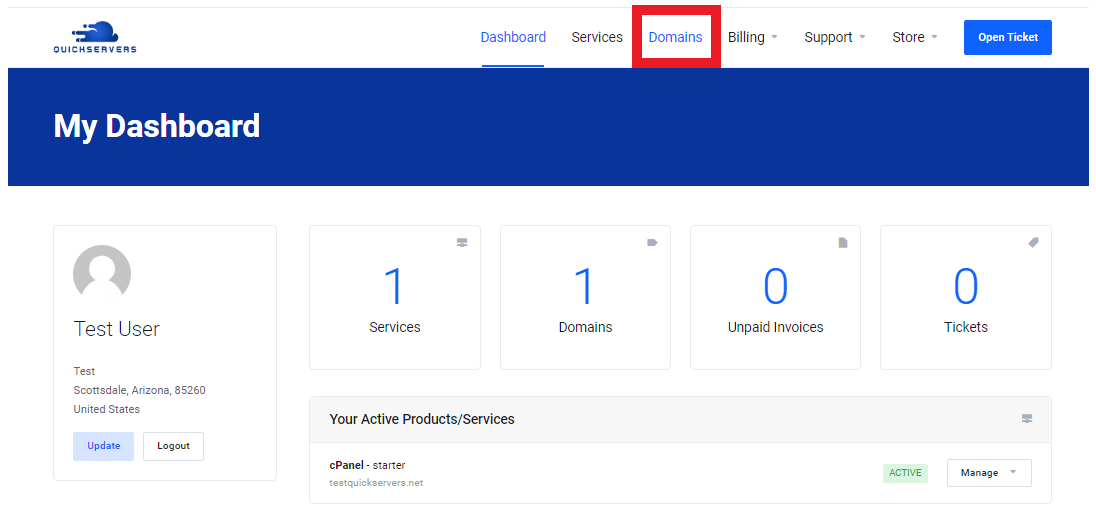
Click on “Domains.”
-
Look for the Status of your domain and check the Expiry Date.
If the domain has expired, renew it immediately to restore service.

2. Check Your Nameserver Settings
Incorrect or missing nameservers often cause “Domain Not Found” errors. Make sure your domain is using the correct nameservers for your hosting or DNS setup.
To check:
-
Open “My Domains” in your QuickServers portal.
-
Click the domain name to open its management page.
-
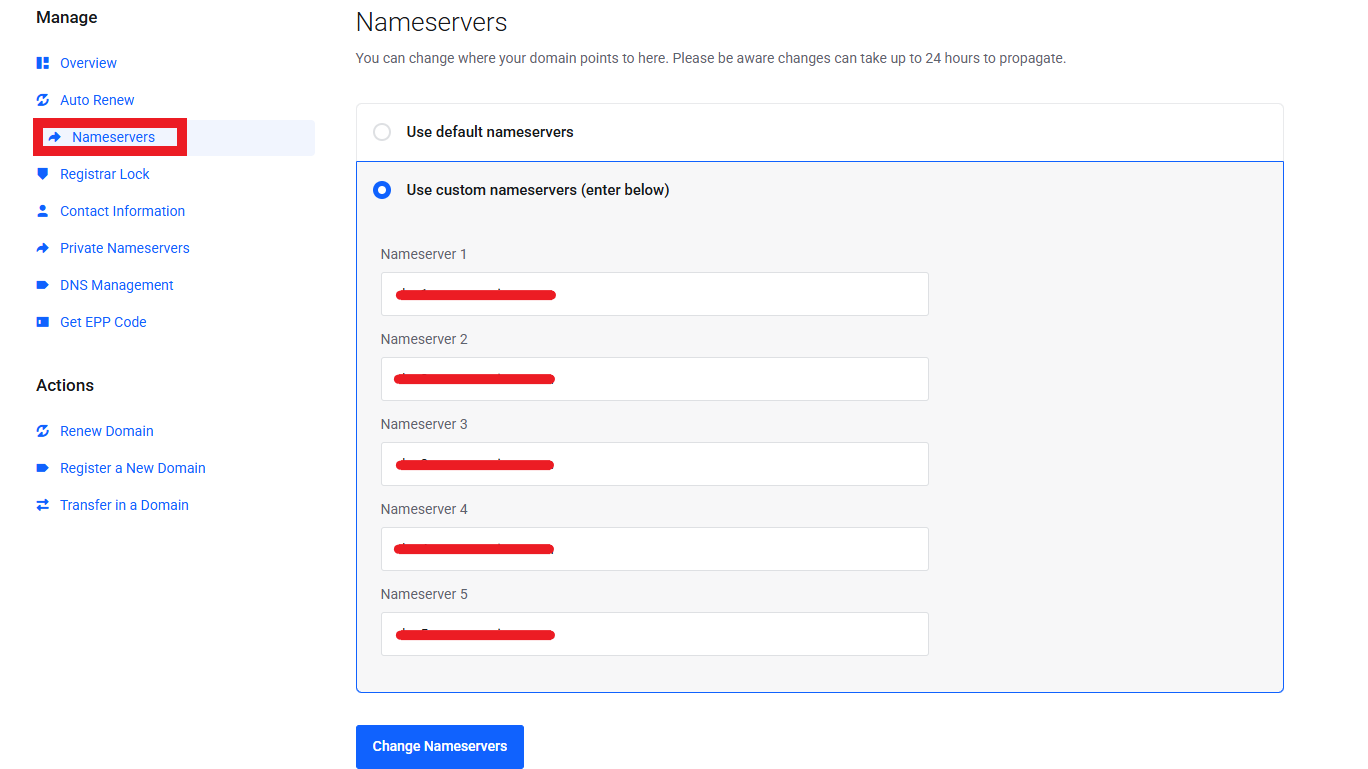
Select “Nameservers.”
-
Verify that the nameservers match the ones provided by your hosting plan.
If your domain should use QuickServers nameservers, update them accordingly and save the changes.
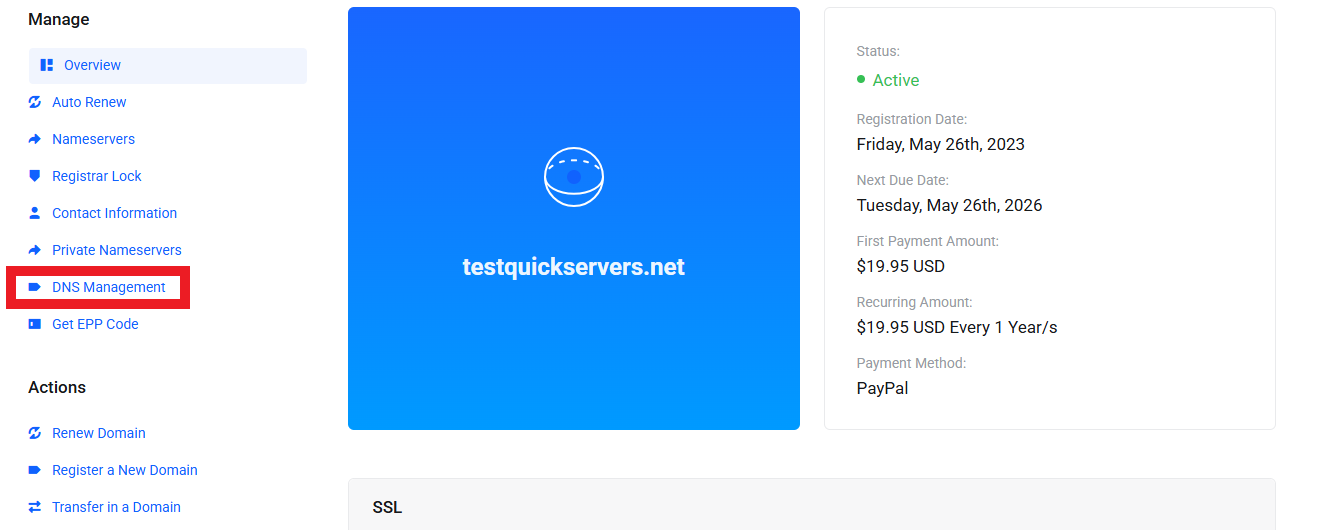
3. Verify That DNS Management Is Enabled
If you are managing DNS directly through QuickServers, DNS Management must be active.
To confirm:
-
Go to the domain’s management page.
-
Click on “DNS Management”.
-
Ensure the feature is enabled.
If it is not enabled, activate it so you can manage your DNS from the portal.
4. Review Your DNS Records for Accuracy
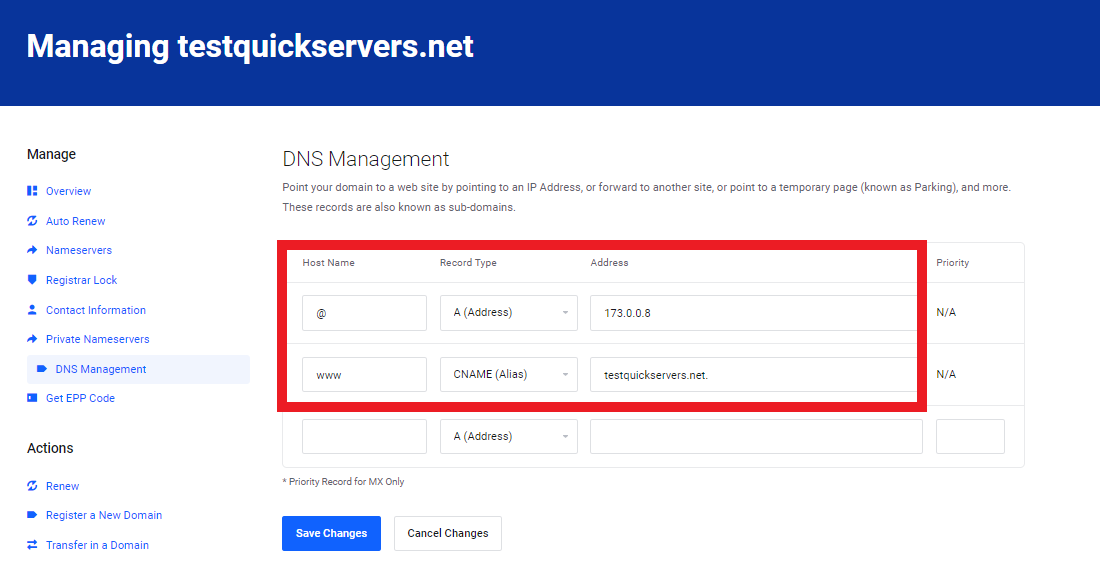
Incorrect DNS records can stop your domain from resolving.
Check the following:
-
A Record – Should point to the correct server IP address.
-
CNAME Record – Should correctly forward subdomains such as “www.”
-
MX Records – Needed for email but won’t affect web access unless missing entirely.
-
TXT or SPF Records – Do not affect domain resolution but should be accurate for email.
-
AAAA (IPv6) or SRV and NS Records – Should be correct if used.
Fix incorrect values or re-add missing ones.
5. Ensure That Your Web Hosting Plan Is Active
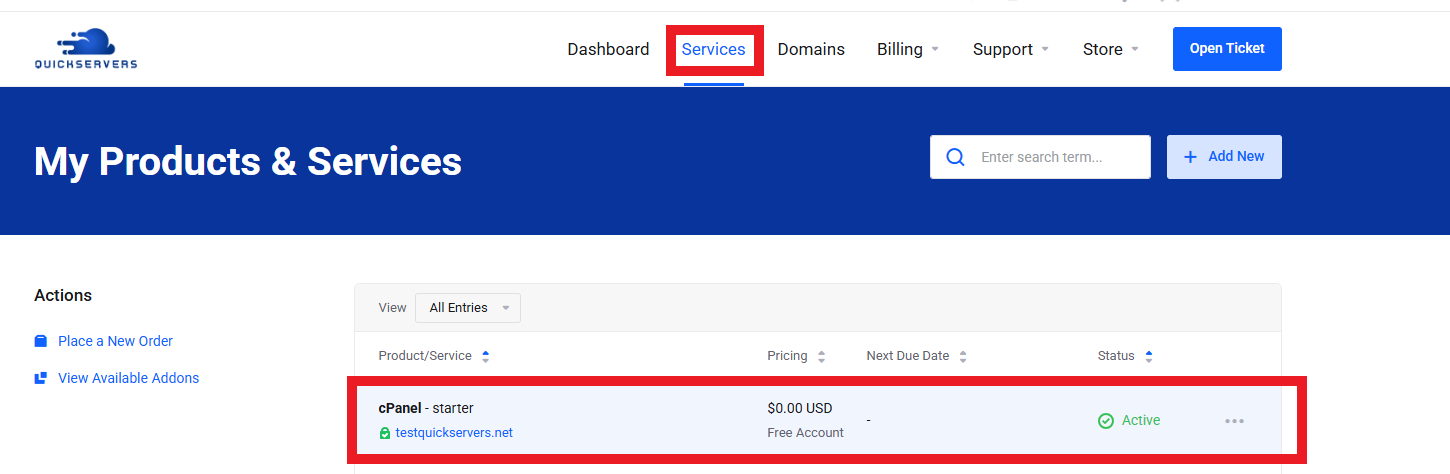
Sometimes the domain resolves correctly, but the hosting plan is inactive, producing a “not found” error.
In your portal:
-
Click on “Services.”
-
Confirm that your hosting plan is active.
-
Make sure your hosting is pointing to the domain you are troubleshooting.
If the hosting is inactive or suspended, reactivate or renew it.
6. Check for DNS Propagation Delays
If you recently updated DNS or nameservers, the domain may not resolve immediately. DNS propagation can take between 5 minutes and 24 hours.
Signs that propagation is still in progress:
-
Some devices load the domain while others do not.
-
Ping or DNS lookup tools show old values.
-
The website loads for some users in different regions.
Give the system time and check again later.
7. Clear Your Local Device or Browser Cache
Your device might be storing outdated DNS information.
Try the following:
-
Restart your browser
-
Clear browser cache
-
Flush DNS cache on your device
-
Try loading the domain on mobile data or another network
If the domain works elsewhere, the issue is local caching.
8. Check for Incorrect Redirects or .htaccess Issues
If your domain resolves but still shows an error, the problem may be with:
-
Wrong redirects
-
Corrupt .htaccess file
-
Incorrect URL rewriting rules
-
Mistyped domain forwarding settings
Remove or correct redirection entries in your domain or hosting dashboard.
9. Make Sure Domain Privacy Is Not Blocking WHOIS Updates
If WHOIS records have not updated, some services may temporarily fail to resolve the domain.
Check:
-
Privacy settings in your domain management
-
That required contact information fields are valid and not blank
-
That no placeholders or expired emails are used
Fixing WHOIS issues ensures correct DNS propagation.
10. Verify Domain Lock Status
Locked domains cannot be transferred or modified in some cases. While this normally protects your domain, certain errors may appear if the domain data could not update.
To check:
-
Open the domain management page.
-
Look for the “Registrar Lock” option.
-
Make sure the domain is set to locked unless you are performing changes.
Unlock only when necessary, then re-lock your domain for security.

11. When to Contact Support
You should reach out to QuickServers support if:
-
DNS changes have not worked after 24 hours
-
Nameservers are correct but the domain still does not resolve
-
You believe the domain should be active but it shows “not found”
-
You need help with advanced DNS configurations
Our team can review your DNS zone, hosting configuration, and domain status to identify the exact issue.
The Bottom Line
A “Domain Not Found” error usually comes from DNS issues, expired domains, incorrect nameservers, or propagation delays. With the QuickServers customer portal, you can quickly check DNS settings, correct nameservers, and verify the status of your domain.
By reviewing each step carefully and keeping your domain settings organized, you can resolve most issues in minutes and keep your online presence reliable and accessible.
