Searching for Available Domain Names: Tips and Tools
Finding the right domain name is usually the first real step in getting your idea, brand, or business online. A good domain name should be easy to type, easy to remember, and a true reflection of what you do. It should also be available.
You can search for, register, and manage domains right from your customer portal with QuickServers. You can also use powerful tools to check availability and look at other options.
This guide shows you step by step how to look for available domain names and gives you useful tips on how to find the best ones for your project.
1. Have a Clear Idea of Your Brand or Project First
Before you use the search tool, think about what you want your domain to stand for.
Think about:
-
What is the main name of my project, business, or brand?
-
Who do I want to reach (local, global, or niche)?
-
Do I want something formal, descriptive, or imaginative?
-
What domain extensions (like .com, .net, .org, country code, or niche TLDs) work best for my brand?
When you have a clear idea, you can search more effectively and quickly spot good candidates.
2. Log in to the QuickServers Customer Portal
To start looking for domain names that are available with QuickServers:
-
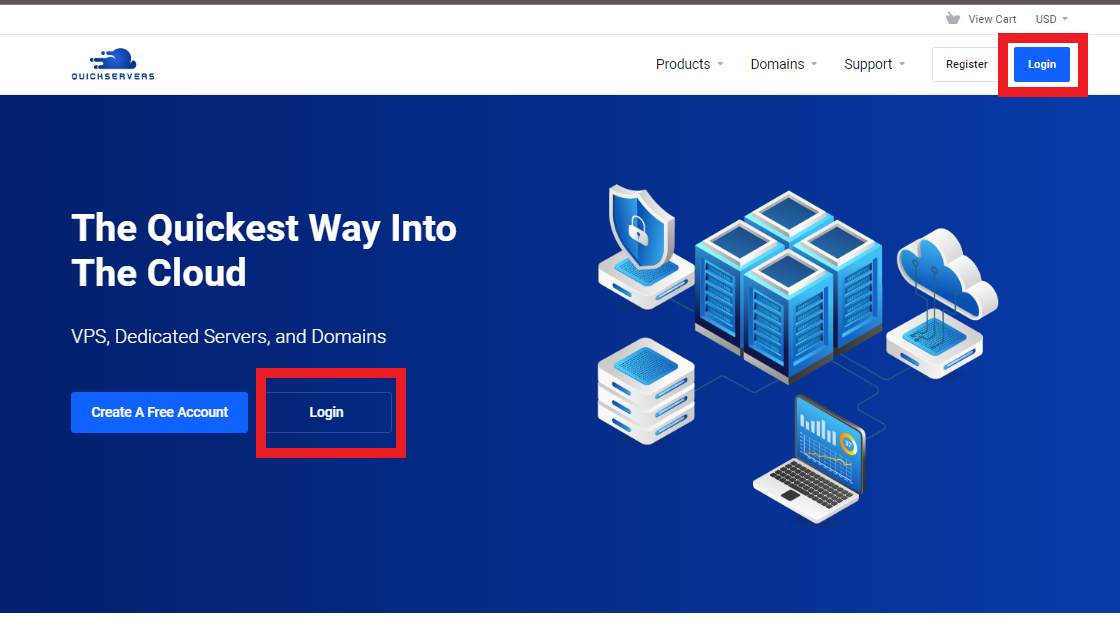
Visit the QuickServers site.
-
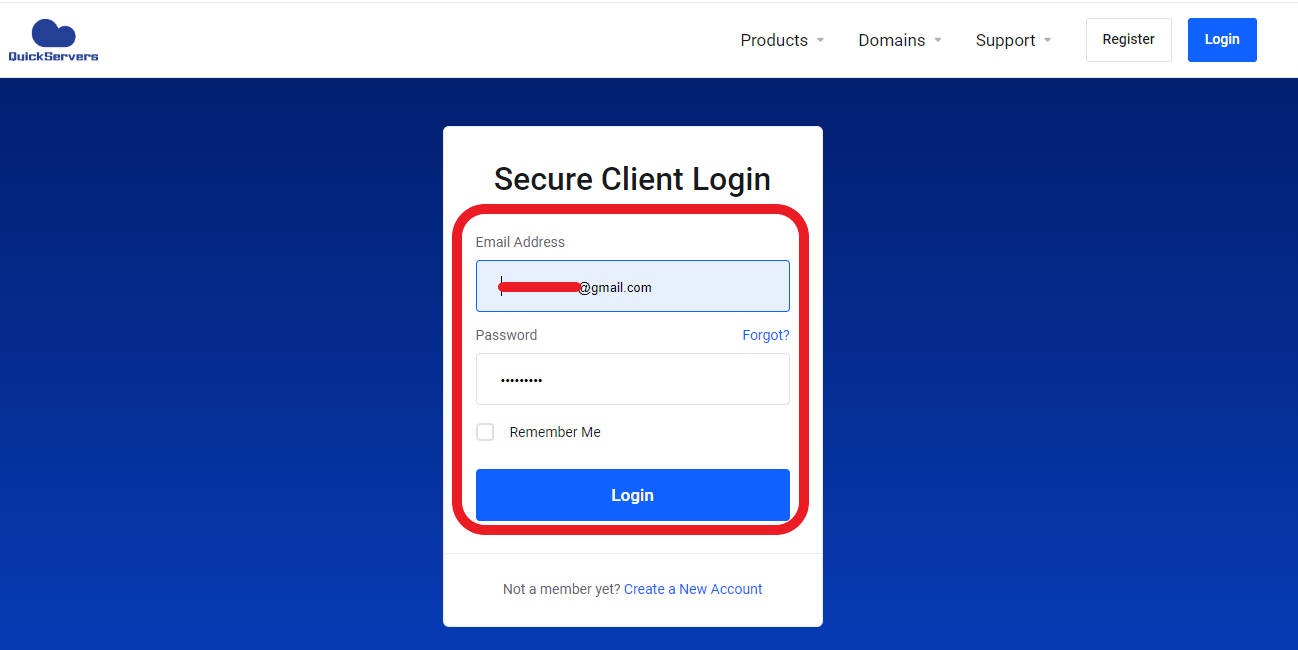
Use your account information to sign in to your customer portal.
-
After you log in, you'll see areas for managing support, domains, services, and billing.
You can get to all the tools you need to search for and register domains from here.
3. In your portal, open the Domain Search Tool.
Inside the QuickServers customer area:
-
To open the domain search interface, click on "Register a New Domain".
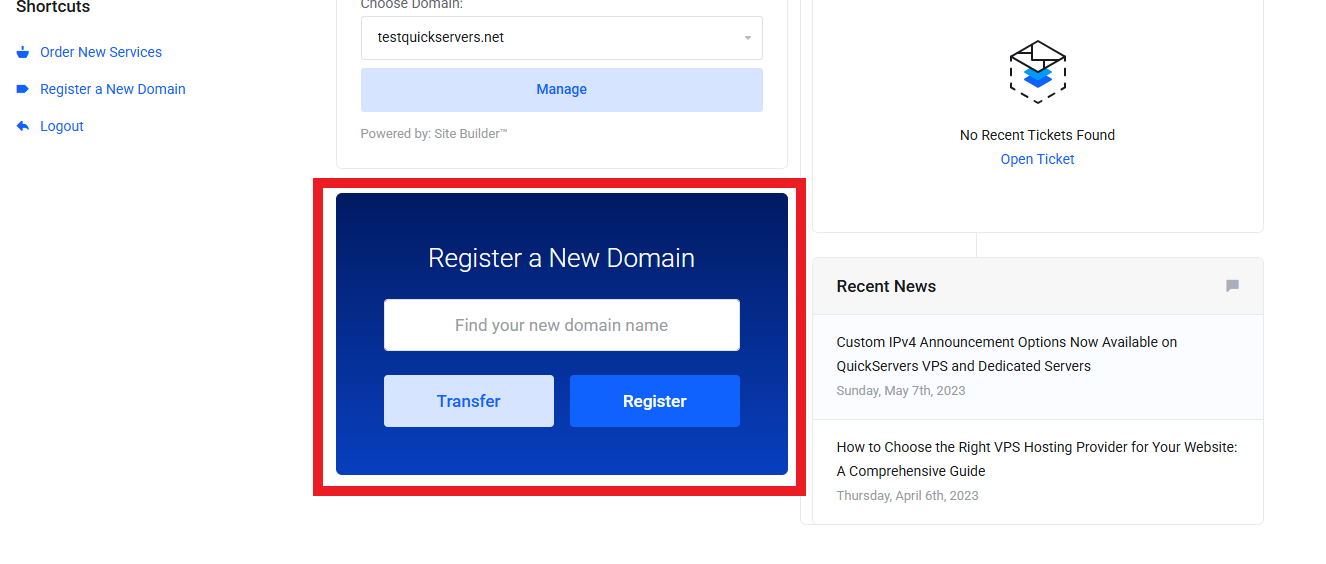
You can do the following with this tool:
-
Search by domain name
-
Check availability in real time
-
Look into different top-level domains (TLDs) like .com, .net, .org, and newer or less common ones.
4. Type in the domain name you want
In the box that says "search":
-
Enter the domain name you want, like "mybrand.com."
-
Click Search or do something similar.
The tool will check to see if the domain is available and show:
-
If the exact name is available or already taken
-
Other suggestions and variations
-
If other extensions (like
.net,.org, or others) are available
Tip: Search with and without keywords to see what works best. Try "quickcleaningservice.com" or "quickcleaningpro.com" instead of just "quickcleaning.com."
5. Use smart search strategies to get better results.
Don't give up if your first choice is taken. Instead, try these smart tips:
-
Add a word
-
Add your location:
mybrandhouston.com -
Add your service:
mybrandconsulting.com
-
-
Make it short and easy to understand
-
Don't use long phrases or hard-to-spell words. Try to get domains that are easy to say and remember.
-
-
Use modifiers that describe
-
If they fit your brand, add words like "online," "shop," "cloud," "digital," "group," or "studio."
-
-
Stay away from characters that are hard to read
-
Don't use hyphens or numbers unless they clearly help your brand.
-
Use the search results and suggestion lists from QuickServers to help you improve your ideas.
6. Look into different TLDs (top-level domains)
If the .com name you want is already taken, you might still be able to find a great one by picking a different extension:
-
gTLDs (Generic TLDs) such as
.com,.net,.org,.online,.store,.blog, and so on. -
ccTLDs (Country Code TLDs) like
.uk,.ca,.de, and.inif you want to reach a specific area. -
Extensions that are specific to a niche or industry, like
.design,.tech,.agency,.shop, and others.
In the domain search tool, you can see what's available by checking the boxes or filters for different extensions. This is helpful for you:
-
Make sure your domain name fits your audience
-
Make your web address more descriptive and unique to your brand
-
When ".com" is already taken, look for shorter, easier-to-remember names.
7. Look at your best choices and make a short list.
After doing a few searches and trying different things, make a list of your top candidates. Think about this:
-
Is the name simple to say and spell?
-
Does it have a clear connection to what I do or offer?
-
Does it seem like a professional and reliable business?
-
Will it be able to grow with my business?
You can keep looking and narrowing down your choices until you find a domain (or a few) that you are sure you can use.
8. Look for ways to protect your brand
If you find a good name that is available, think about registering more than one version to keep your brand safe.
For instance, you could:
-
Sign up for both
mybrand.comandmybrand.net -
Get country extensions that are relevant to your business, like
mybrand.co.ukormybrand.ca, if you do business there. -
If people are likely to use them, register common misspellings or shortened versions.
QuickServers lets you manage multiple domains from one customer portal, which makes it easy to keep your brand safe and consistent online.
9. Put the domains you want in your cart.
When you're ready:
-
Choose the domains you want from the list of search results.
-
For each domain, click "Add to Cart."
-
Pick how long you want to register for (for example, one year, two years, or more).
-
Turn on "auto-renew" for important domains so you don't accidentally lose them.
Depending on what's available, you might also see choices for domain privacy or other extras.
10. Check your registration and finish it.
Before you finish your order:
-
Check the list of domains in your cart.
-
Make sure that each one is registered for the right amount of time.
-
Look at the total cost and any extras you chose.
When everything looks right:
-
Go to checkout.
-
Use your QuickServers account to make the payment safely.
After you pay, your new domains will show up in your customer portal under "My Domains." From there, you can change DNS, nameservers, and renewal settings.
11. Use QuickServers Tools to Keep Track of and Search Domains Over Time
The QuickServers customer portal is still the main place for you to:
-
Look for new domains as your brand grows
-
Register more names and extensions
-
Control DNS and nameservers
-
Turn on or change auto-renew settings
-
Keep track of who owns domains for different projects
You always know where your domains are and how they are set up when everything is in one system.
The Bottom Line
Finding available domain names doesn't have to be hard. You can quickly find, buy, and manage the right domains for your business or project if you know what your brand is, use some smart naming strategies, and use the built-in tools in the QuickServers customer portal.
QuickServers gives you the tools and freedom to look at different domain options, register the best names, and manage everything from one place, whether you're starting a new website or growing an existing brand.
