How to Change the DNS Records for Your QuickServers Domain
One of the most important things you can do to control your domain is to manage your DNS records. Your DNS settings determine where your website loads, where your emails go, and how different online services connect to your domain. You can update and manage all of your DNS records right from your customer portal with QuickServers.
This guide shows you how to get to, change, and update DNS records, as well as some useful tips for using them correctly.
1. What Are DNS Records and Why Are They Important?
The Domain Name System (DNS) changes your domain name into the right server or service. It works in the background, but it affects everything your domain does.
Your DNS records are in charge of:
-
Where your website is hosted
-
Where email is sent
-
How third-party services connect
-
Domain forwarding or redirection
-
Verification for services like email providers, search engines, and security services
Making sure that your DNS records are up to date is important for the smooth operation of your website and email.
2. Go to the QuickServers Customer Portal and log in
To change your DNS settings:
-
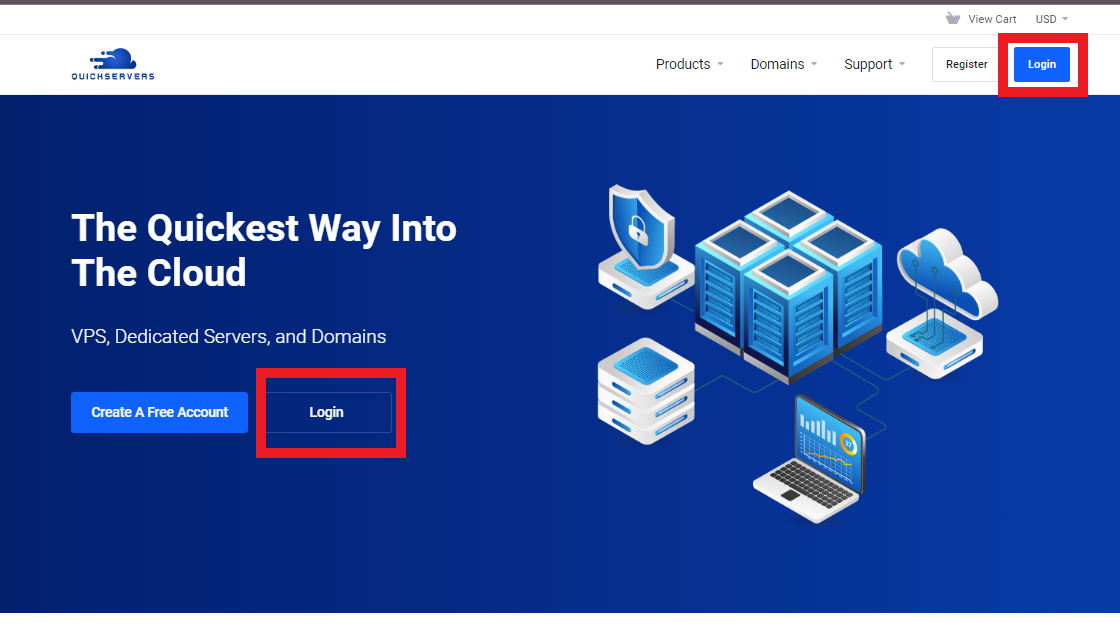
Go to the QuickServers site.
-
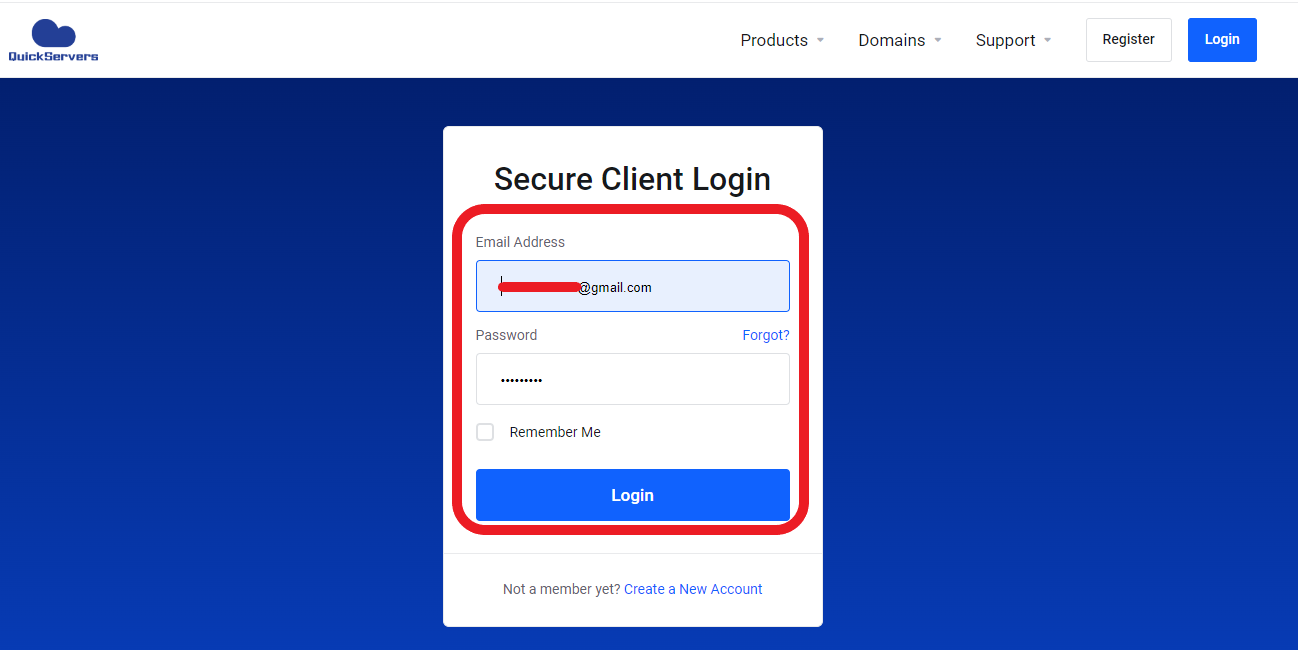
Use your account information to log in to your customer portal.
-
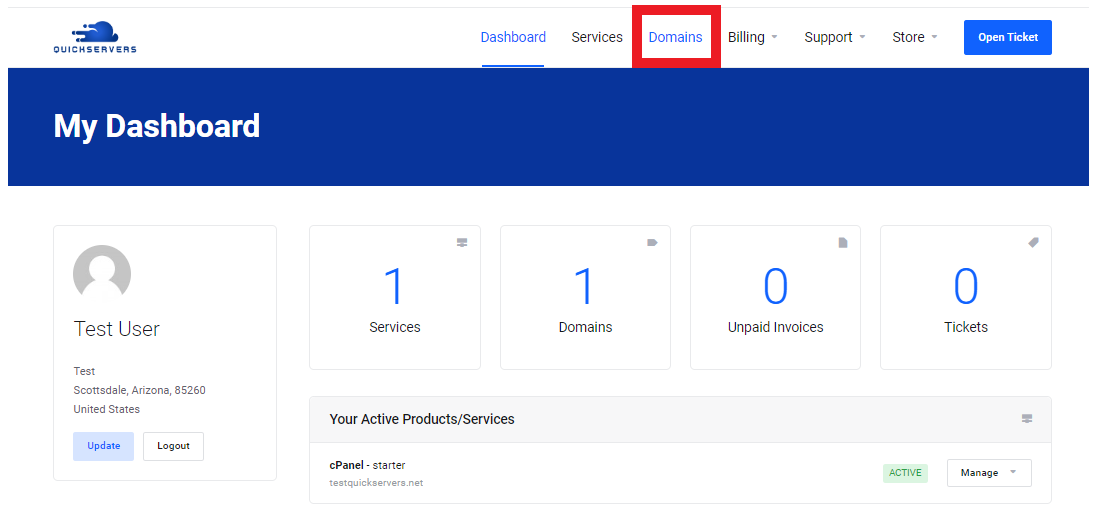
After you log in, you'll see sections for billing, domains, services, and support.
You can find all the tools you need to manage DNS in the Domains section of your portal.
3. Click on "My Domains"
From the main screen:
-
Click on "Domains"
Pick the domain you want to change.
4. Go to the DNS Management Page
After you choose your domain:
-
To open the management menu for the domain name, click on it.
-
Find an option "DNS Management".
You may need to turn on DNS Management if it isn't already on, depending on how the domain is set up.

5. Look over the DNS records that are already there
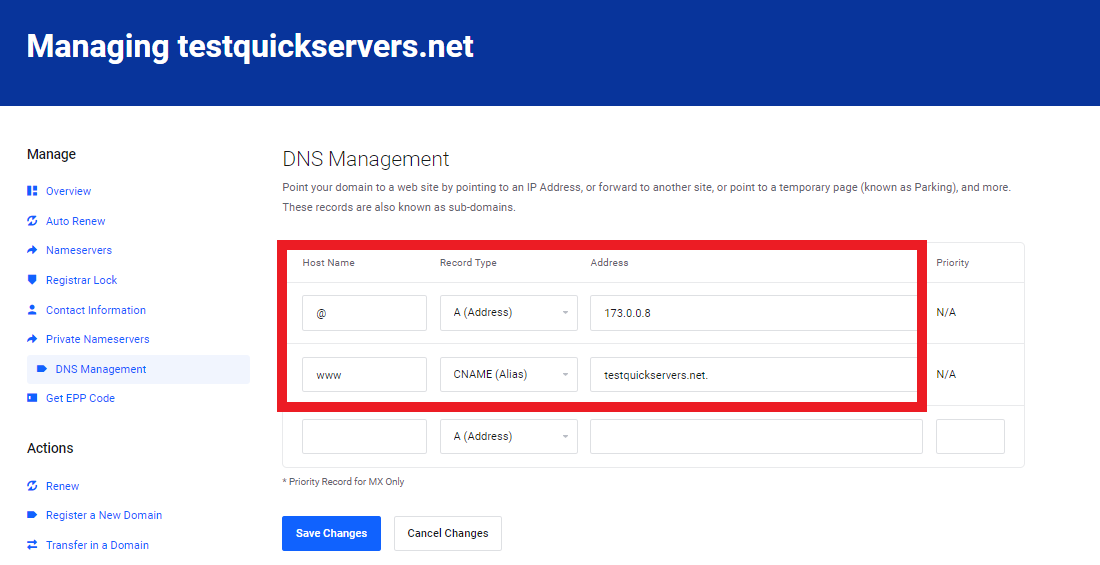
You can see existing DNS records in the DNS editor, such as:
-
A Record: This record tells the domain where to find an IP address.
-
CNAME Record: This record tells one domain where to find another domain.
-
MX Records – Controls where email goes
-
TXT Records – Used for verification, SPF, DKIM, and security settings
-
NS Records – Nameservers that control DNS
-
AAAA Record – IPv6 address
-
SRV Records – Routing for specific services
Knowing what these records are for can help you avoid accidentally taking down your website or email.
6. Create a New DNS Record
To make a new record:
-
Click on "Add Record"
-
Pick the type of record (A, CNAME, MX, TXT, etc.)
-
Fill in the required fields, like host, value, and TTL.
-
Keep your changes
Examples:
Adding an A record:
Host: "@"
Value: 123.123.12.1
TTL: Default
Putting in a CNAME record:
Host: www
Value: yourdomain.com
Adding a TXT record:
Host: @
Value: SPF or a string of verification
7. Change DNS records that are already there
To change an already-existing DNS entry:
-
Find the record in the table
-
Click Edit
-
Change the fields as needed
-
Keep the changes
Be careful: changing an active DNS record will affect your live services right away.
8. Get rid of DNS records that you don't need
If a record is no longer needed:
-
Click on the record
-
Click on "Delete"
-
Confirm the action
Taking out old or wrong DNS entries can help stop problems and conflicts.
9. Give DNS time to spread
Changes to DNS don't happen right away everywhere. They need to update on DNS servers all over the world.
Normal times for propagation:
-
Small changes: 5–30 minutes
-
Big changes (like nameservers, MX, etc.): 1–4 hours
-
Full propagation: up to 24 hours
Depending on where you are, your website or email may switch between old and new records during this time.
10. Safe DNS Management Tips
To avoid problems, follow these best practices:
-
Always check IP addresses, MX values, and CNAME targets twice.
-
Don't delete important records unless you know what they do.
-
Before making big changes, make a backup of your old DNS settings.
-
Use the default TTL unless your provider tells you to.
-
To avoid confusion, only update one service at a time (email, website, etc.).
Managing your DNS correctly helps keep your services running smoothly without any problems.
11. Control All DNS Settings from a Single Portal
You can do the following with the QuickServers customer portal:
-
Add and change DNS records
-
Change nameservers
-
Manage email routing (MX records)
-
Add TXT verification for security and third-party services
-
Turn DNS Management on or off
-
Keep track of DNS settings for multiple domains
Everything stays in order in one main system.
The Bottom Line
To manage your website, email, and online services, you need to keep your DNS records up to date. The QuickServers portal gives you full access to all the tools you need to quickly and safely manage all of your DNS settings.
QuickServers makes DNS management easy, safe, and beginner-friendly, whether you're starting a new project, connecting email services, or pointing your domain to a new host.
