How to Set Up Email on QuickServers with Your Own Domain
Using a custom email address like "you@yourdomain.com" instead of a free email service makes your business look more professional and trustworthy. You can connect your domain to an email service and change the most important settings right from your customer portal with QuickServers.
This step-by-step guide shows you how to set up email with your own domain, change your DNS records, and check that everything is working right.
1. What You Need Before You Start
Before you set up email on your domain, make sure you have:
-
A domain that is registered and managed in your QuickServers customer portal and is active
-
The ability to log in to your QuickServers account
-
An email hosting service, which could be part of your web hosting plan or a service from a third party
-
The DNS settings your email hosting service gives you, like MX, SPF, and maybe DKIM records
Getting these things ready will make it easier and faster to set up.
2. Go to the QuickServers Customer Portal and log in
To start:
-
Visit the QuickServers website.
-
Use the information from your customer portal to log in.
-
After you log in, you'll see areas for billing, domains, services, and support.
You can find the domain and DNS tools you need in the Domains section.
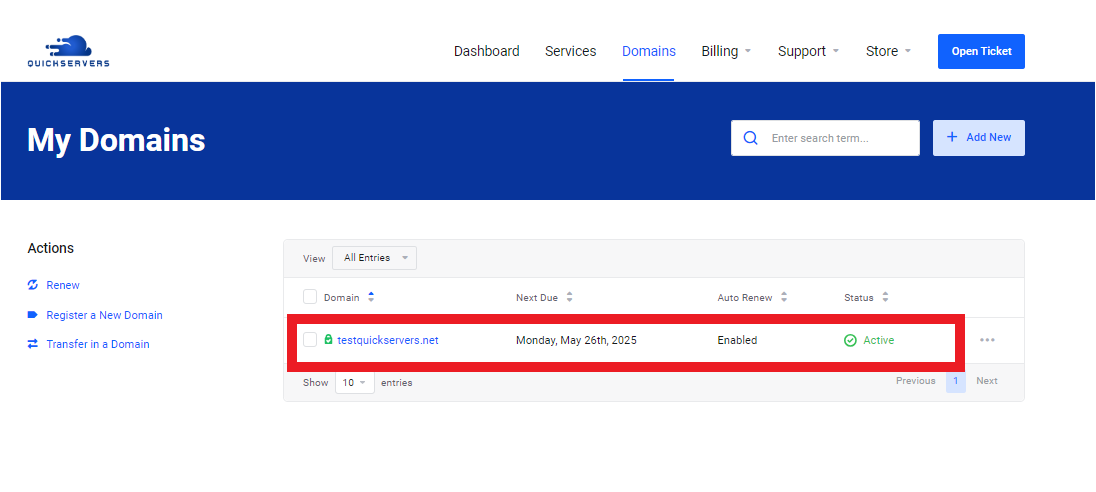
3. Choose the domain you want to use for email
From the main screen:
-
Click on "Domains."
-
Click on the name of the domain you want to use for your custom email, like "yourdomain.com."
This takes you to the page where you can manage your domain.
4. Go to the DNS Management Section for Your Domain
On the page for managing domains:
-
Look for DNS Management. Click here to open the DNS editor for the domain you chose.
You might have to turn on DNS Management for your domain before you can change DNS records if it isn't already on.

5. Choose how you want to host email
You can use your domain with any of the following:
-
Email is included with your hosting plan (if available), or
-
You can use a third-party email service, like a dedicated email platform or a cloud email provider.
In either case, your domain's DNS records need to point to the right mail servers.
6. Add or change the MX records for your email service
MX (Mail Exchange) records tell the internet where to send email for your domain.
To create or change MX records:
-
Open the DNS editor and look for your current MX records.
-
If you're changing providers, get rid of or change any old MX records that you don't need anymore.
-
Click "Add Record" or something like that and pick "MX" as the type.
-
Type in the values that your email hosting service gives you, which include:
-
Priority (like 10 or 20)
-
The address of your mail server, like
mail.yourdomain.comor a server host that your email service gives you.
-
-
Keep your changes.
Check to see if there are any old MX records from other services, as they can make it hard to deliver.
7. Set up SPF, DKIM, and other DNS records for email
You should also set up extra DNS records to make sure your emails get through and are safe:
-
SPF (TXT record) – Tells your domain's servers which ones can send email on your behalf.
-
DKIM (TXT or CNAME record) — This adds a digital signature to your outgoing mail to show that it hasn't been changed.
-
DMARC (TXT record, optional but recommended) – This helps you control how mail servers that receive messages from your domain deal with messages that look suspicious.
For example, to add a TXT record for SPF or DMARC:
-
Click on "Add Record" and then "TXT."
-
Type in the host, which is usually a "@" sign or a specific subdomain.
-
Copy and paste the value that your email provider gave you, like an SPF or DMARC policy.
-
Keep the record.
To avoid delivery problems, always use the exact values that your email service gives you.
8. Set up mailboxes with your email hosting service
After you set up your DNS records correctly, you'll need to make the actual email accounts (mailboxes):
-
Sign in to your email hosting control panel. This could be part of your hosting account or a separate dashboard for your email service.
-
Search for "Email Accounts," "Mailboxes," or something like that.
-
Make email addresses like these:
-
info@yourdomain.com -
support@yourdomain.com -
yourname@yourdomain.com
-
Make sure each mailbox has a strong password and keep it safe.
9. Link Your Email to Devices and Email Clients
Once your mailboxes are set up and DNS is set up:
-
Use the IMAP/POP and SMTP settings that your email host gives you. Put your own email address in:
-
Email programs for desktop computers (like Outlook or other mail apps)
-
Email apps for mobile devices
-
Webmail (if your host offers it)
-
Usually, you will need:
-
Your full email address and password
-
The type of encryption (SSL/TLS) and port numbers for the incoming and outgoing mail servers (IMAP or POP)
10. Check to see if your custom email setup works
To check that everything is working:
-
Send a test email from your new address to another email, like a personal email.
-
Send a test email from an outside account to your new address.
-
Check that:
-
Messages are being sent and received
-
Emails are not going to spam folders by accident
-
The "From" address correctly shows your custom domain
-
Keep in mind that DNS changes, especially MX, SPF, and DKIM, can take a while to spread. It can take anywhere from 15 minutes to a few hours.
11. Common Problems and How to Fix Them
If your email isn't working right, check these things:
-
MX records — Make sure they only point to your current email service.
-
SPF and DKIM — Make sure that the TXT records are correct and that no characters are missing.
-
Propagation time — It can take up to 24 hours for global DNS changes to take effect, especially after big changes.
-
Nameservers — Make sure your domain is using the nameservers where you set up DNS.
If something needs to be fixed, you can look at and change everything from your QuickServers customer portal.
The Bottom Line
Setting up email with your own domain on QuickServers is a great way to make your brand look professional and trustworthy. You can manage all of your email accounts from one place by setting up the right DNS records, making mailboxes, and testing your setup.
QuickServers gives you the tools to manage domains and email with confidence, whether you're starting a new business, upgrading from a free email address, or organizing communications for multiple projects.
