Troubleshooting Common Domain Propagation Delays
When you change DNS settings or nameservers for a domain, those updates don’t take effect everywhere on the internet instantly. This waiting period is called DNS propagation, and during it you might see inconsistent results: the site works in one place but not another, or works on mobile but not on your office computer.
With QuickServers, you control DNS and nameserver changes from your customer portal, but understanding propagation will help you know what’s normal and how to spot real problems.
This step-by-step guide explains what domain propagation is, how long it usually takes, and what to check when your domain doesn’t seem to update as expected.
1. Understand What Domain Propagation Is
When you change DNS records or nameservers, those updates must spread across many DNS servers around the world. Until every DNS server has the new information, some users will still see the old settings.
Common changes that trigger propagation include:
-
Updating nameservers
-
Changing A records to a new IP
-
Updating MX records for email
-
Adding or modifying CNAME or TXT records
During propagation, it is normal for your domain to:
-
Work on one device but not another
-
Work on mobile data but not home Wi-Fi
-
Load sometimes and fail other times
This doesn’t always mean something is broken.
2. Check When You Made the DNS or Nameserver Change
Propagation takes time. Before you assume something is wrong:
-
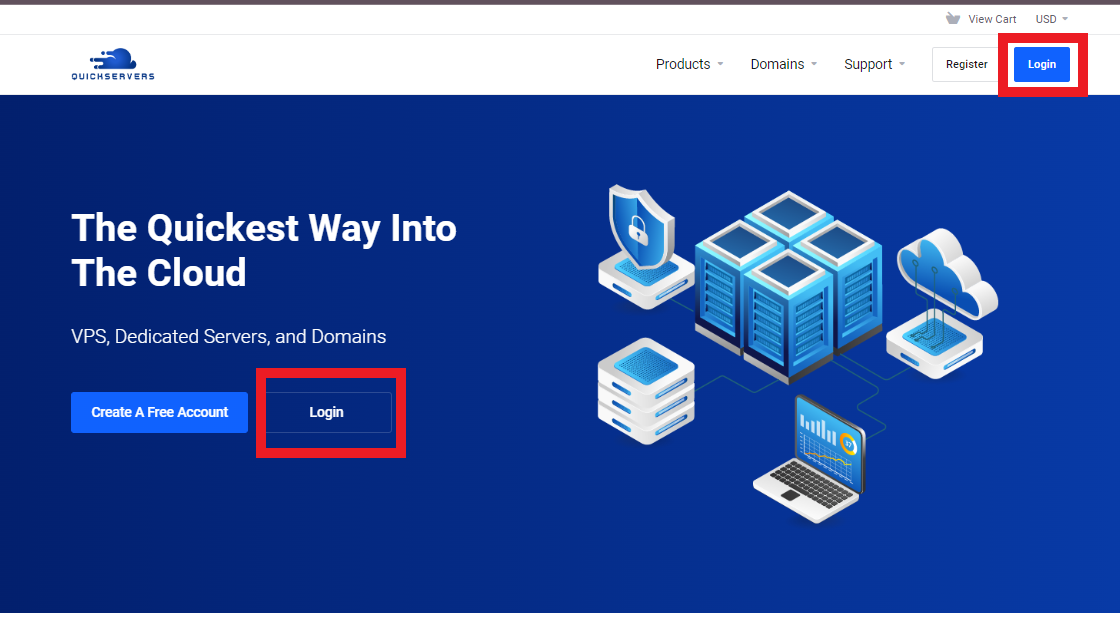
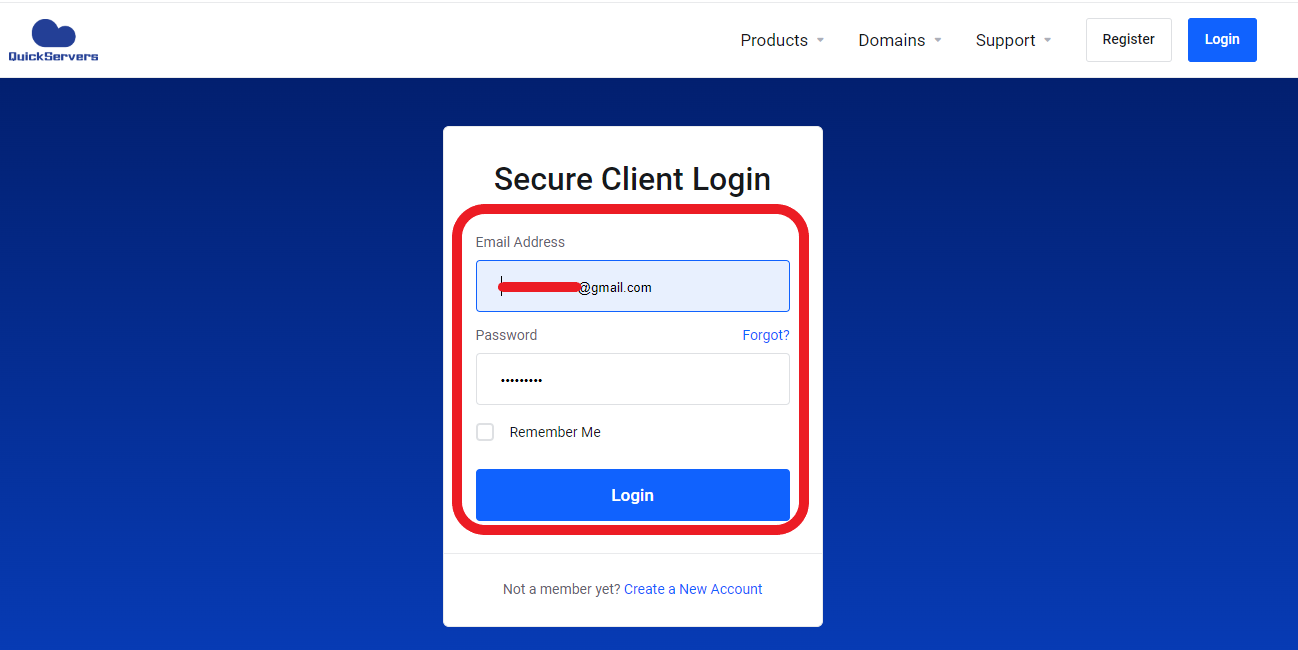
Log in to your QuickServers customer portal
-
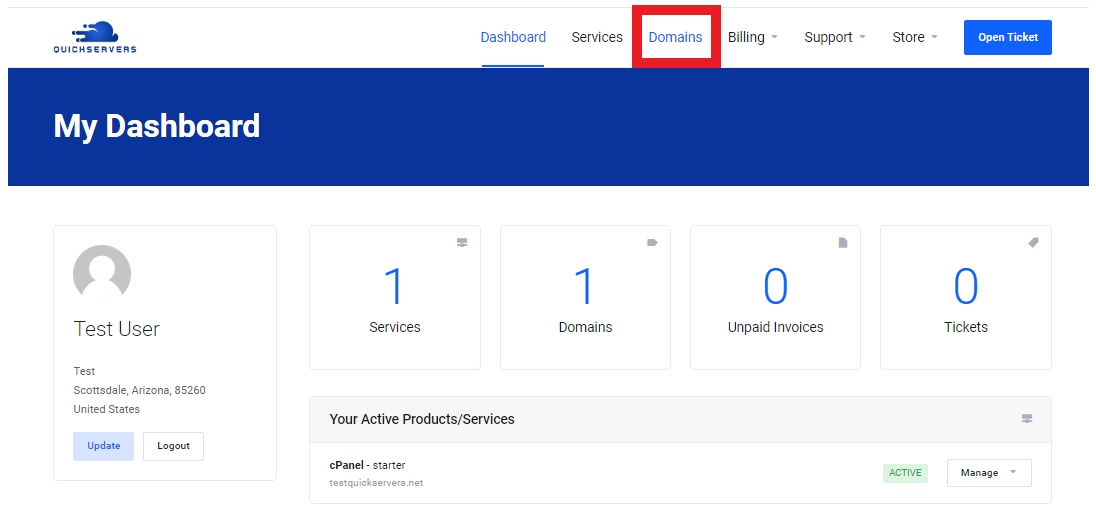
Go to Domains
-
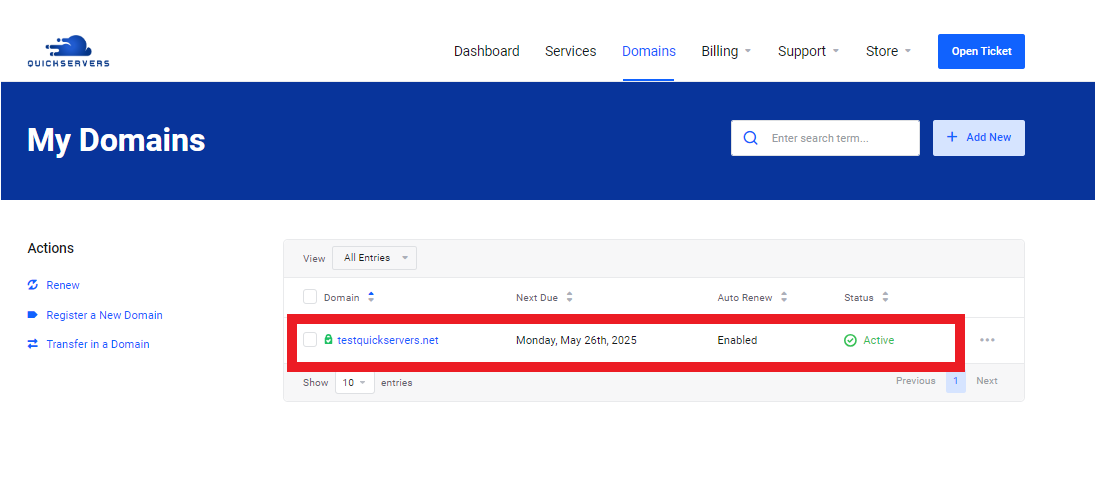
Click on the domain you’re working with
-
Review when you last changed:
-
Nameservers
-
DNS (A, CNAME, MX, TXT, etc.)
-
Typical propagation windows:
-
Small DNS record changes: 5–30 minutes
-
Larger changes (nameservers, MX): 1–4 hours
-
Full global propagation: up to 24 hours (sometimes a bit more)
If it’s only been a few minutes, it may simply be too early.
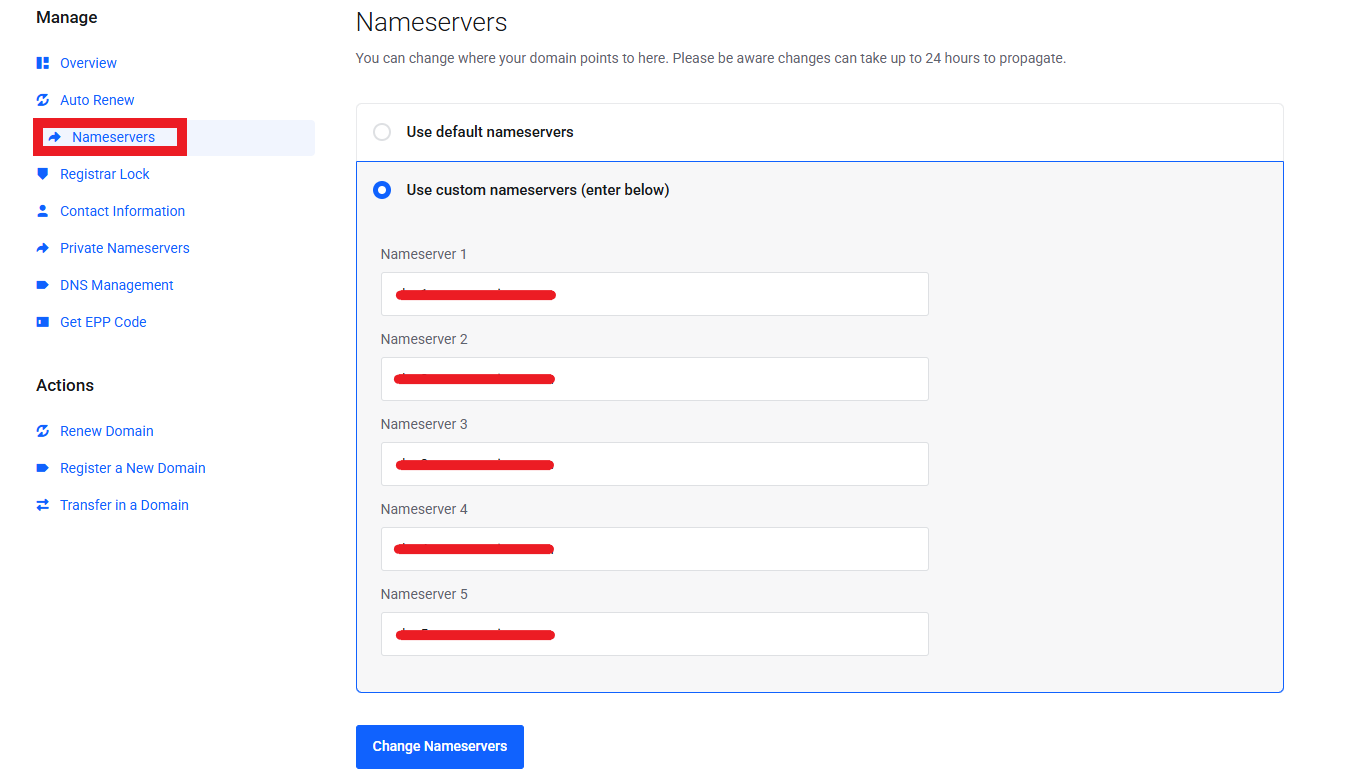
3. Confirm That Your Nameservers Are Set Correctly
If your domain is using the wrong nameservers, DNS changes may never take effect.
From your QuickServers portal:
-
Go to Domains
-
Click on your domain
-
Find the Nameservers section
-
Confirm that:
-
You are using the correct nameservers provided for your hosting or DNS service
-
There are no typos (for example,
ns1.quickservers.netvsns1.quikservers.net)
-
If you just updated your nameservers, remember that nameserver changes usually take longer to propagate than a simple DNS record update.
4. Verify Your DNS Records in the QuickServers Portal
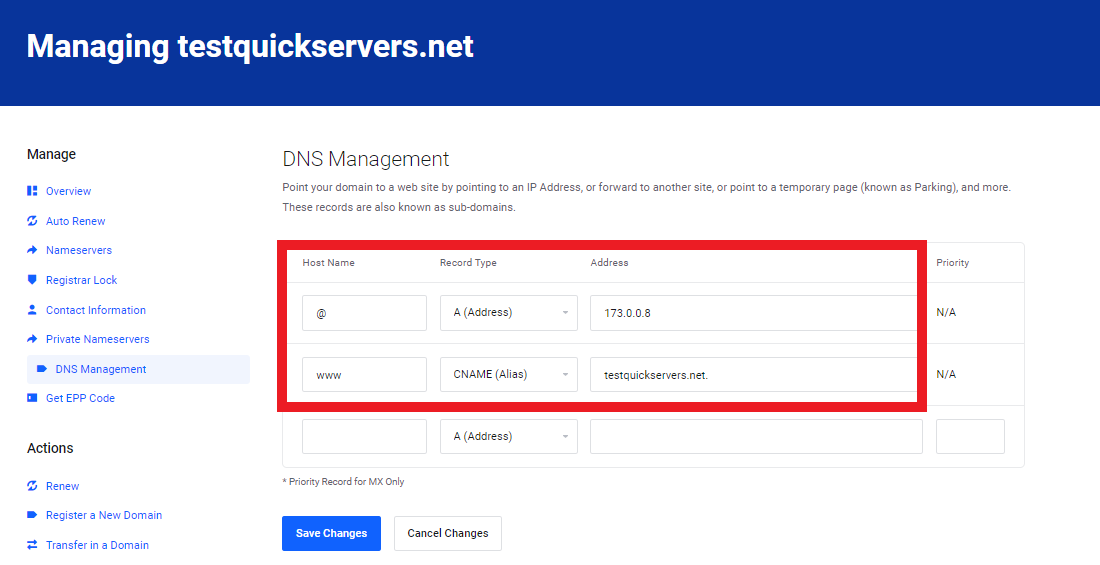
If nameservers look correct, check your DNS records:
-
From your domain management page, click DNS Management
-
Review your records for:
-
A Records – Pointing your domain to the correct IP address
-
CNAME Records – Pointing
wwwor other subdomains correctly -
MX Records – Correct mail server hostnames if you’re troubleshooting email
-
TXT Records – SPF, DKIM, or verification records as needed
-
Look for:
-
Spelling errors in hostnames
-
Extra or conflicting records (for example, two A records for the same host pointing to different IPs when you only need one)
-
Old records from a previous hosting provider
Correct any mistakes, save your changes, and then allow time for propagation.
5. Use Online DNS Lookup Tools to Check Propagation
To see what other DNS servers around the world are seeing:
-
Use an external DNS checker or “what’s my DNS” style tool
-
Enter your domain (for example,
yourdomain.com) -
Check key records such as:
-
A (for website IP)
-
CNAME (for
wwwor subdomains) -
MX (for email)
-
Compare what these tools show to what you’ve configured in your QuickServers DNS editor:
-
If they match, propagation is in progress and you may just need more time
-
If they don’t match after several hours, re-check your settings or nameservers
6. Clear Local DNS and Browser Cache
Sometimes the problem isn’t global propagation, but cached data on your device or network.
Try the following:
-
Clear browser cache and then reload your site
-
Try another browser (Chrome, Firefox, Edge, Safari)
-
Use a different device (phone/laptop)
-
Use mobile data instead of Wi-Fi to bypass your local network’s cache
On many systems you can also clear DNS cache (for example, using ipconfig /flushdns on Windows or equivalent commands on other operating systems).
If the site works on some connections but not others, propagation and caching are still in progress.
7. Check for Conflicting DNS Settings
Conflicts can slow down or break propagation in practice, even if technically the changes are valid.
Look for:
-
Multiple A records for the same host pointing to different IPs (if you don’t intend load balancing)
-
Old MX records from a previous email host still present
-
CNAME records and A records using the same host name (for example,
wwwas both a CNAME and an A record)
To reduce confusion:
-
Remove records you no longer need
-
Keep only the DNS entries required for your current hosting and email setup
-
Save changes and allow time for the new configuration to take effect
8. Confirm That Your Domain Is Using the Correct Nameservers for Where You Edited DNS
A common cause of “propagation issues” is editing DNS in one place while your domain uses nameservers somewhere else.
Double-check:
-
If your domain uses QuickServers nameservers, DNS changes in the QuickServers DNS Management area will apply
-
If you pointed nameservers to another provider, that provider’s DNS zone (not QuickServers) now controls the domain
Make sure you are editing DNS in the same system that your nameservers point to.
9. Give Propagation Enough Time and Test Again
Even when everything is set up correctly, global DNS propagation can still take time, especially after:
-
Nameserver changes
-
Email provider migrations
-
Large DNS restructuring (many records changed at once)
Best practice:
-
Wait at least 1–2 hours after major changes before heavy testing
-
Allow up to 24 hours for global consistency
-
Periodically check via:
-
External DNS lookup tools
-
Different networks and devices
-
Your QuickServers DNS editor to ensure settings remain correct
-
10. When to Contact Support
If all of the following are true:
-
Your DNS and nameserver settings in the QuickServers portal are correct
-
External DNS checkers show unexpected or inconsistent results after 24+ hours
-
Your site or email still fails to resolve properly on multiple devices and networks
then it may be time to contact support.
Prepare the following before you reach out:
-
The domain name you’re troubleshooting
-
A summary of the changes you made (nameservers, A/MX/CNAME/TXT records)
-
When you made the changes
-
Screenshots or results from DNS lookup tools
This information will help the support team quickly verify whether there’s a DNS configuration issue or something else at play.
The Bottom Line
Domain propagation delays are normal every time you change nameservers or DNS records. Most issues resolve themselves as the new data spreads across global DNS servers, but incorrect settings, caching, or conflicting records can make delays seem longer or more confusing.
With the QuickServers customer portal, you can clearly see and control your domain’s nameservers and DNS records. By verifying your settings, using external DNS tools, clearing local caches, and giving changes enough time to propagate, you can confidently troubleshoot most domain propagation issues on your own.
QuickServers gives you the centralized tools you need to manage domains, DNS, and hosting smoothly—keeping your websites and services reachable with minimal downtime.
