Managing Multiple Domains in Your QuickServers Account
Managing more than one domain doesn’t have to be complicated. Whether you run several brands, manage client projects, or protect your main domain with multiple extensions, QuickServers lets you control everything from a single customer portal.
This step-by-step guide explains how to organize, update, and maintain multiple domains in your QuickServers account so you can keep your online presence clean, secure, and easy to manage.
1. Log in to Your QuickServers Customer Portal
To start managing your domains:
-
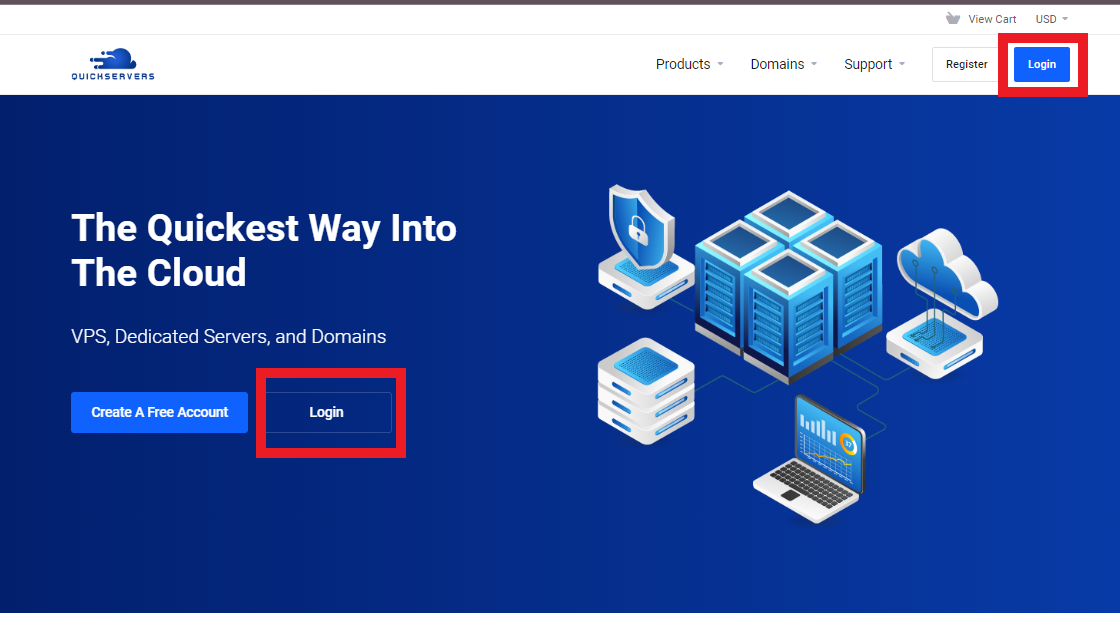
Go to the QuickServers website.
-
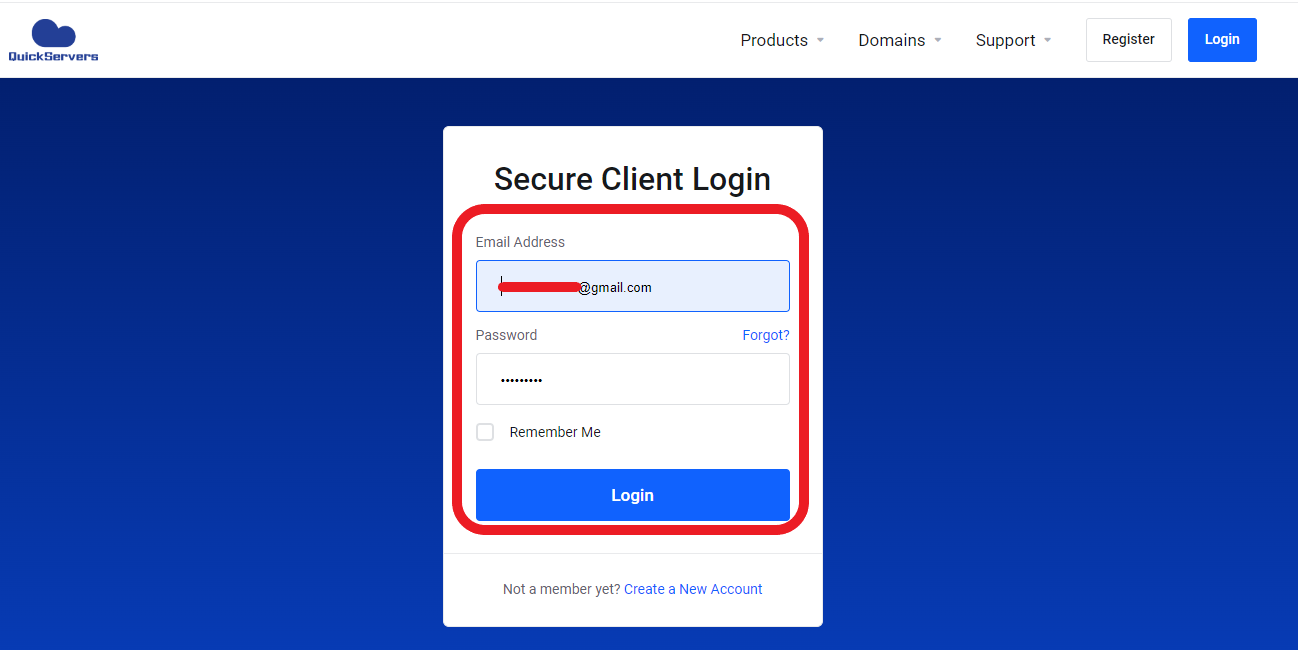
Sign in using your customer portal login details.
-
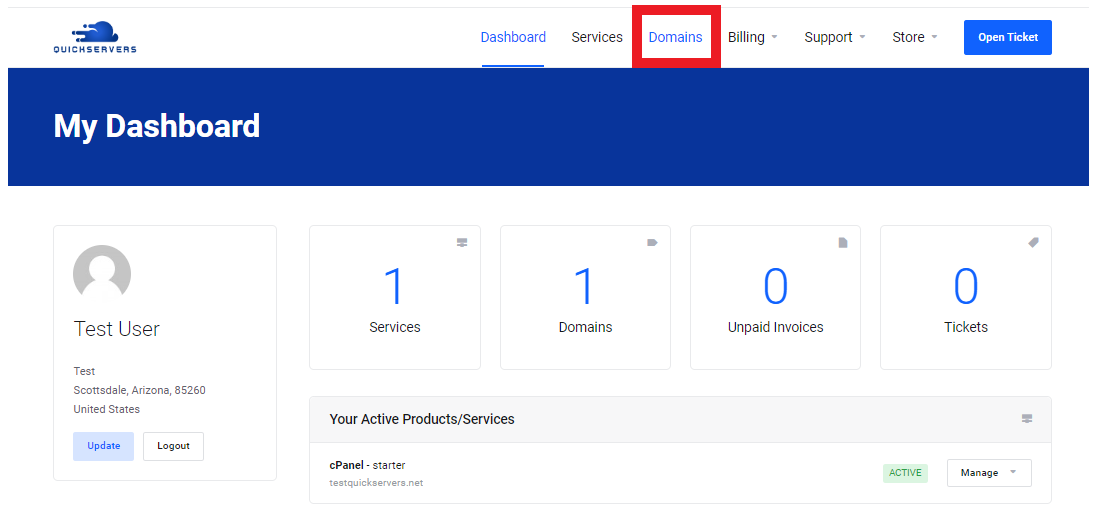
Once logged in, you’ll see sections for Domains, Services, Billing, and Support.
The Domains area is where you’ll spend most of your time managing multiple domain names.
2. Open the “My Domains” Overview Page
From your main dashboard:
-
Click on Domains.
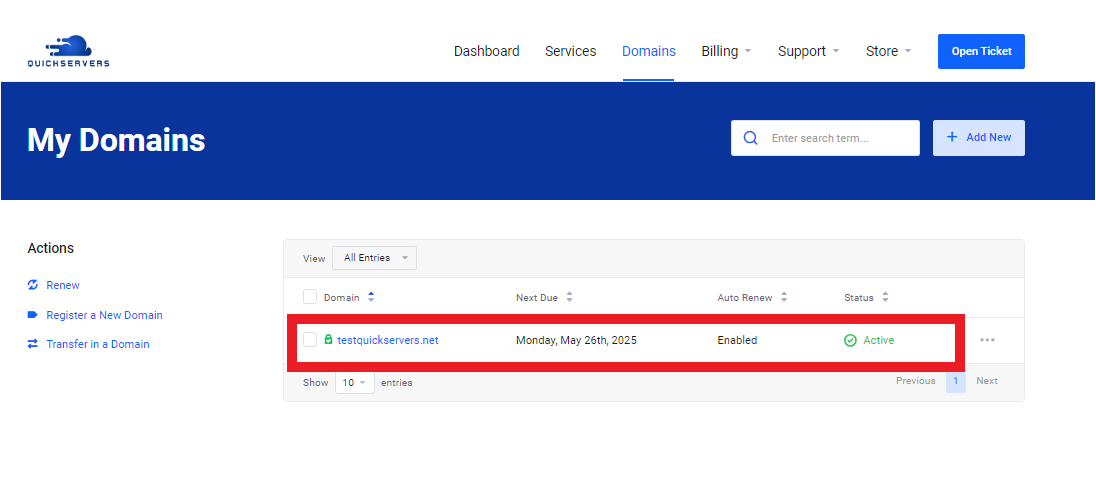
This page shows a list of all domains currently associated with your QuickServers account. It’s your main control panel for bulk domain management, renewals, and configuration.
Here, you can typically see:
-
Domain name
-
Status (Active, Expired, Pending, etc.)
-
Expiry date
-
Basic management options (like Manage, Renew, or Settings)
3. Use Filters and Search to Find Specific Domains
When you’re managing many domains, filters and search are essential:
-
Use the search bar to quickly find a domain by name or keyword.
-
Apply filters (if available) to view:
-
Only active domains
-
Domains expiring soon
-
Domains with specific extensions (like
.com,.net,.org)
-
These tools help you quickly locate the domains that need attention, especially when you’re working with a large portfolio.
4. View and Manage a Single Domain’s Settings
To manage an individual domain:
-
In My Domains, find the domain you want to work with.
-
Click on the domain name or Manage button.
This opens the domain management screen, where you can:
-
Update nameservers
-
Manage DNS records
-
Configure auto-renewal
-
View contact information and status
Repeat this process for each domain when you need to make specific changes.
5. Turn On Auto-Renew for Important Domains
For key domains (brand, business, email, or e-commerce domains), enabling auto-renew helps prevent accidental expiration:
-
From My Domains, click on the domain you want to protect.
-
Look for Auto-Renew or Renewal Settings.
-
Switch Auto-Renew to On.
-
Save your changes.
Do this for all high-value domains so they are automatically renewed using your saved payment method before the expiry date.
6. Use Bulk Actions to Save Time
If your account supports bulk management, you can apply changes to multiple domains at once. Common bulk actions include:
-
Bulk renew
-
Bulk nameserver updates
-
Bulk enable/disable auto-renew
Typical process:
-
In My Domains, use the checkboxes next to each domain to select multiple domains.
-
Look for a Bulk Actions or Actions dropdown.
-
Choose an option such as:
-
Bulk Renew
-
Update Nameservers
-
Enable Auto-Renew
-
-
Follow the prompts to confirm and apply the changes.
Bulk operations are ideal for agencies, resellers, or businesses managing many domains under one QuickServers account.
7. Organize Domains by Project, Brand, or Priority
Keeping your domains organized makes management easier over time. Depending on what is available in your portal, you can:
-
Use naming conventions for domains relating to the same brand (for example:
brand.com,brand.net,brand.co, etc.). -
Maintain an internal list or notes outside the portal mapping domains to specific projects or clients.
-
Sort domains by expiry date to quickly see which ones need action soon.
If your portal supports notes or labels, use them to mark domains as:
-
“Primary Brand”
-
“Client Site”
-
“Landing Page”
-
“Email Only”
This helps you quickly identify each domain’s role at a glance.
8. Keep DNS and Nameservers Consistent Across Related Domains
When managing multiple domains, you may use some as:
-
Primary websites
-
Redirects or forwards
-
Email-only domains
-
Region-specific versions (e.g.,
mybrand.com,mybrand.co.uk)
To manage them effectively:
-
Ensure domains that should load the same website share the same nameservers or appropriate A/CNAME records.
-
Use DNS records to:
-
Point secondary domains to your main site via 301 redirects or CNAME.
-
Direct email-only domains to the correct MX records.
-
-
Regularly review DNS settings to remove old or unused records that could cause confusion.
Consistent configuration reduces errors and helps your domains work together as a unified online presence.
9. Renew and Plan Ahead for All Domains
Managing multiple domains means keeping track of multiple expiration dates. In your My Domains list:
-
Review the Expiry Date column regularly.
-
Renew important domains early, especially:
-
Business and branding domains
-
Domains used for email
-
Domains that receive traffic or rank in search engines
-
You can:
-
Manually renew selected domains one by one.
-
Use bulk renewal for several domains at once.
-
Combine long-term registrations (for example, 3–5 years) for your most valuable domains.
Planning renewals ahead of time helps you avoid losing domains or paying higher recovery fees later.
10. Monitor Contact and Billing Information
Accurate contact and billing details are critical when managing many domains:
-
Make sure your account contact email is current so you receive renewal notices and important alerts.
-
Keep your billing information up to date so auto-renewal works reliably.
-
Update domain contact details when ownership or administrative contacts change.
This reduces the risk of missed emails, failed renewals, or verification issues.
11. Review Your Domain Portfolio Regularly
As your projects and brands evolve, it’s smart to review your domains periodically:
-
Identify domains you actively use vs. those you no longer need.
-
Decide whether to:
-
Keep and renew
-
Redirect to another domain
-
Allow to expire if they no longer serve a purpose
-
-
Make sure your core brand domains and key extensions remain protected and renewed.
Regular portfolio reviews keep costs under control while ensuring your most important domains stay secured under your QuickServers account.
The Bottom Line
Managing multiple domains in your QuickServers account is simple once you know where to look and how to use the tools in your customer portal. By organizing your domains, using bulk actions, enabling auto-renew, and keeping DNS and billing information up to date, you can maintain a clean, secure, and professional domain portfolio.
Whether you manage a single brand with many extensions or a large collection of domains for different projects, QuickServers gives you centralized control so you can handle everything efficiently from one place.
