Domain Locking: How to Protect Your Domain from Unauthorized Transfers
Keeping your domain safe is one of the most important parts of managing your online identity. If your domain is not locked, anyone who gets access to your authorization (EPP) code may be able to transfer it away without your approval. Domain locking adds a strong layer of protection to keep this from happening.
This guide explains what domain locking is, why you should use it, and how to turn it on or off from your QuickServers customer portal.
1. What is domain locking?
Domain locking is a security setting that stops your domain from being transferred without your permission. When a domain is locked:
-
Transfer requests will be rejected
-
Unauthorized parties cannot start a transfer
-
Your domain ownership stays secure
When a domain is unlocked, it can be transferred, which is why it’s important to use locking unless you are intentionally starting a transfer.
2. Why domain locking is important
Turning on domain locking protects your domain in several ways:
-
Prevents unauthorized transfers even if someone gets the EPP/Auth code
-
Protects your brand and keeps your domain from being stolen
-
Adds a strong security layer without affecting your website or email
-
Gives you control over when and how transfers happen
Domain theft does happen—and locking is one of the easiest ways to stop it.
3. How to check your domain lock status in QuickServers
To see whether your domain is locked:
-
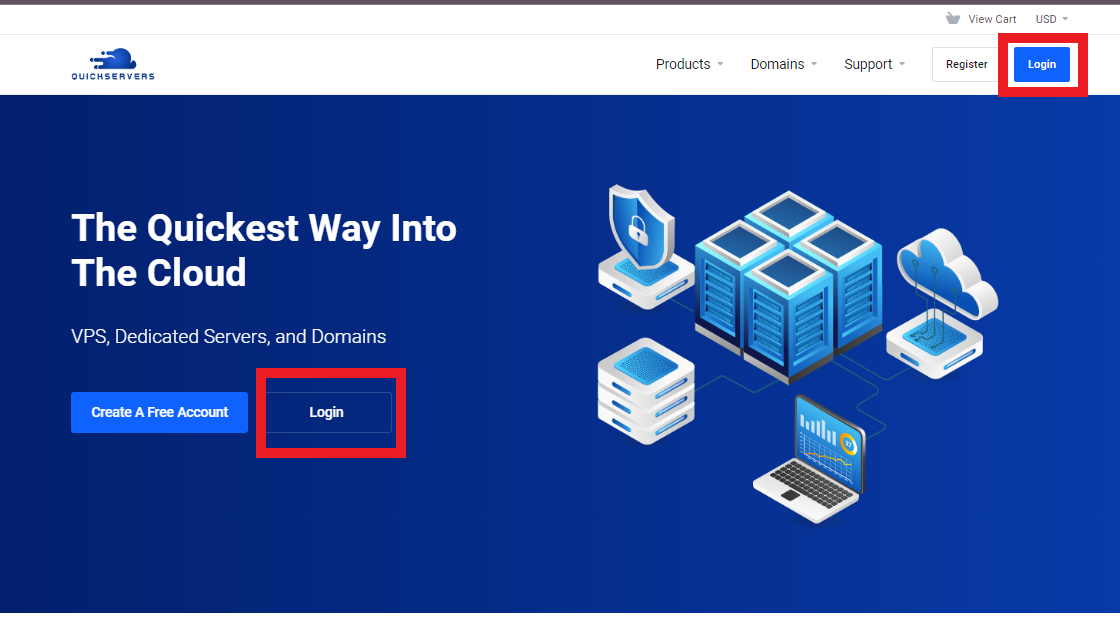
Visit the QuickServers website
-
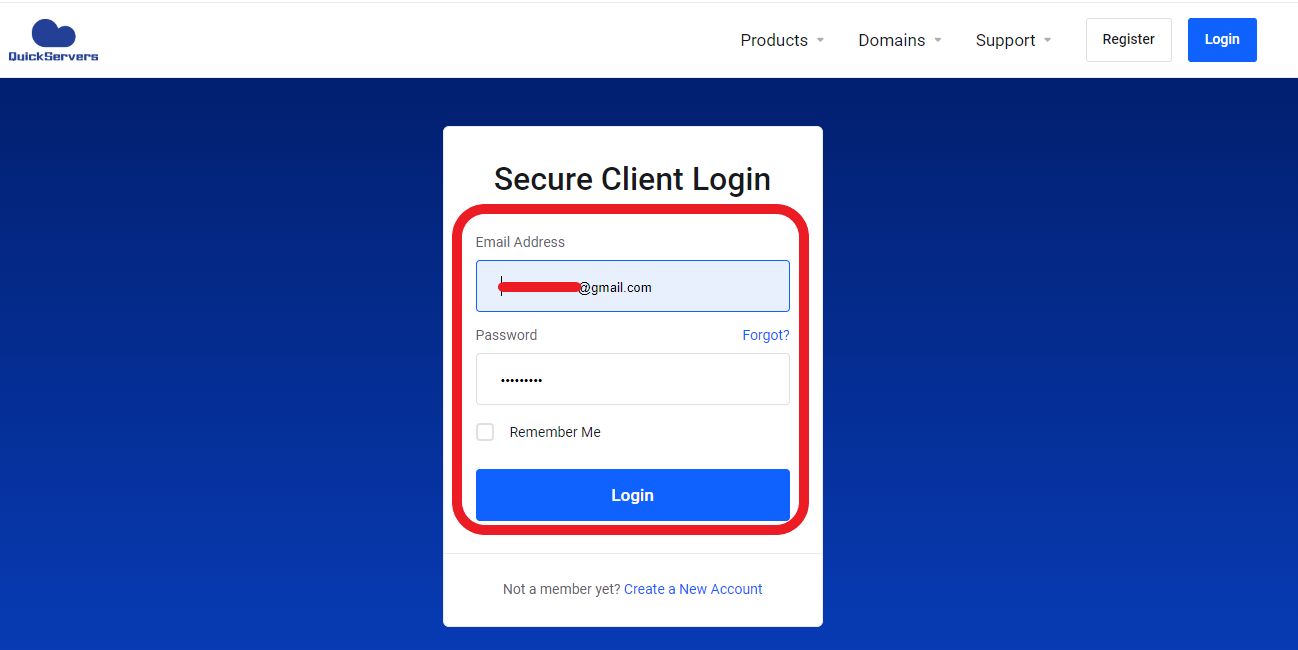
Log in using your customer portal credentials
-
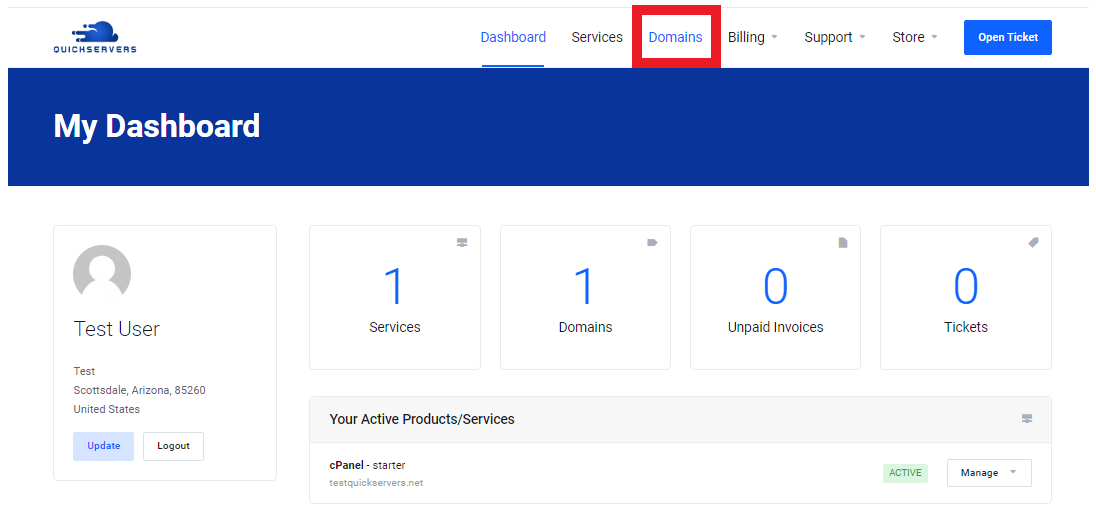
Click on Domains
-
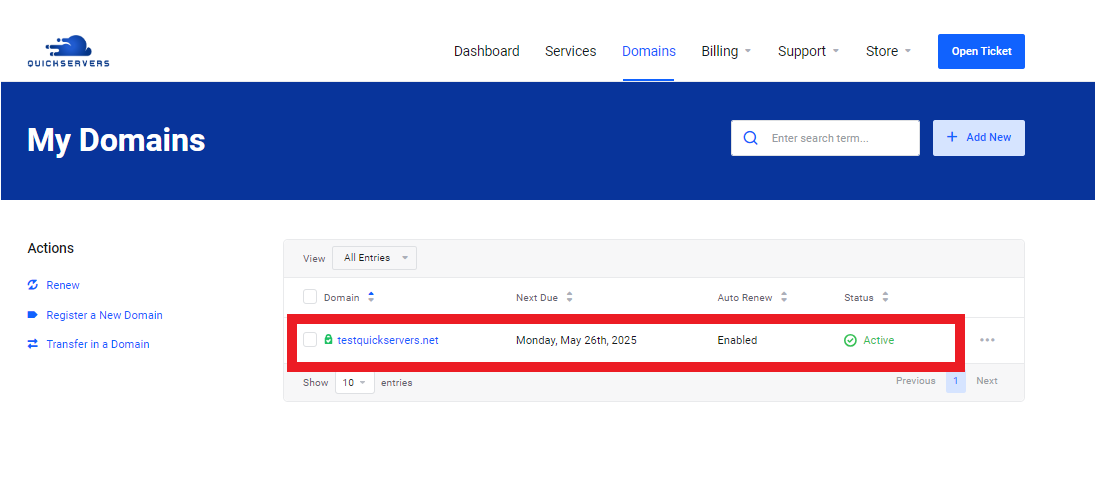
Find the domain you want to check
-
Look for its status or open its management page
The portal will show if the domain is currently Locked or Unlocked.
4. How to turn on domain locking in QuickServers
You can lock your domain in just a few clicks:
Step 1:
Open the My Domains area in your QuickServers portal.
Step 2:
Click the domain name you want to protect.
Step 3:
In the domain management menu, look for:
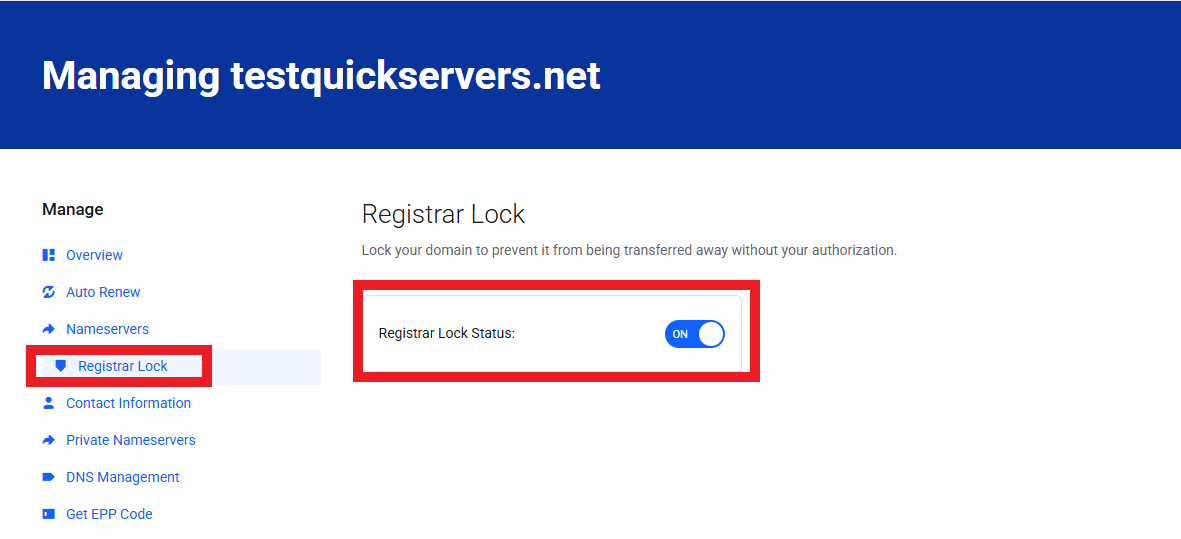
“Registrar Lock”
Step 4:
Click Enable Lock or Turn On Locking.
Once locking is enabled, your domain cannot be transferred until you manually turn the lock off.
5. How to turn off domain locking (only when you need to)
You should only unlock your domain when planning a legitimate transfer.
To unlock:
-
Go to your domain’s management screen
-
Find the Registrar Lock settings.
-
Click the Toggle.
After unlocking, your domain can be transferred using its EPP/Auth code.
6. When you should use domain locking
Domain locking is recommended for almost all situations, including:
-
Active business websites
-
Email-critical domains
-
Domains used for e-commerce
-
Domains that represent your main brand
-
Domains kept for future projects
-
Portfolios with multiple domains
Only disable locking if you are intentionally transferring the domain.
7. What domain locking does NOT change
Domain locking protects transfers, but it does not affect:
-
DNS changes
-
Nameserver updates
-
Website operation
-
Email delivery
-
WHOIS contact updates
-
Renewals
Your domain will work normally with locking enabled.
8. Tips for keeping your domain safe
To keep domain theft or unauthorized changes from happening:
-
Keep domain locking enabled at all times
-
Make sure your QuickServers account password is strong
-
Turn on 2FA (if available)
-
Keep your WHOIS email up to date so you receive notifications
-
Never share your EPP/Auth code
-
Make sure domain privacy is enabled for added protection
These small steps add strong security to your domain.
The Bottom Line
Domain locking is an essential security feature for every domain owner. It prevents unauthorized transfers, protects your online identity, and keeps your brand safe. With QuickServers, you can enable or disable domain locking anytime directly from your customer portal.
QuickServers gives you full control over your domains, helping you protect them with simple but powerful security tools.
